<?xml version="1.0" encoding="utf-8"?><feed xmlns="http://www.w3.org/2005/Atom" ><generator uri="https://jekyllrb.com/" version="4.3.3">Jekyll</generator><link href="/atom.xml" rel="self" type="application/atom+xml" /><link href="/" rel="alternate" type="text/html" /><updated>2023-12-29T23:47:52+00:00</updated><id>/atom.xml</id><title type="html">MAX | BLOG</title><subtitle>Some thoughts, ideas, and projects.</subtitle><author><name>Max Farrior</name><email>mfarrior@gmail.com</email></author><entry><title type="html">Installing Paperless in Docker - Second Steps</title><link href="/2020/paperless-in-docker-second-steps/" rel="alternate" type="text/html" title="Installing Paperless in Docker - Second Steps" /><published>2020-07-13T08:00:00+00:00</published><updated>2020-07-13T08:00:00+00:00</updated><id>/2020/paperless-in-docker-second-steps</id><content type="html" xml:base="/2020/paperless-in-docker-second-steps/"><![CDATA[<p>This page is a followup to my <a href="/2020/paperless-in-docker/">Installing Paperless in Docker</a> article.</p>

<p>This covers some additional topics about running Paperless, that are not required, but may be very useful.</p>

<p>Generally speaking, before you run these commands, you want to <code class="language-plaintext highlighter-rouge">cd</code> into the location where you installed Paperless. (In the first article, it’s <code class="language-plaintext highlighter-rouge">cd /opt/paperless/</code>)</p>

<h1 id="additional-docker-commands">Additional Docker Commands</h1>

<p>Paperless can be started by running:</p>

<div class="language-plaintext highlighter-rouge"><div class="highlight"><pre class="highlight"><code># docker-compose up -d
</code></pre></div></div>

<p>Similarly, Paperless can be stopped by running:</p>

<div class="language-plaintext highlighter-rouge"><div class="highlight"><pre class="highlight"><code># docker-compose down
</code></pre></div></div>

<p>And naturally, there’s also:</p>

<div class="language-plaintext highlighter-rouge"><div class="highlight"><pre class="highlight"><code># docker-compose restart
</code></pre></div></div>

<p>Another useful one is reading the logs of the container:</p>

<div class="language-plaintext highlighter-rouge"><div class="highlight"><pre class="highlight"><code># docker-compose logs
</code></pre></div></div>

<p>That command spits everything out in the screen. To view it in a program where you can scroll through it, run:</p>

<div class="language-plaintext highlighter-rouge"><div class="highlight"><pre class="highlight"><code># docker-compose logs | less
</code></pre></div></div>

<p>Press “<code class="language-plaintext highlighter-rouge">q</code>” to quit.</p>

<p>You can also save the logs to a file, and use <code class="language-plaintext highlighter-rouge">less</code> to view that file.</p>

<div class="language-plaintext highlighter-rouge"><div class="highlight"><pre class="highlight"><code># docker-compose logs &gt; paperless.logs
# less paperless.logs
</code></pre></div></div>

<p>Please note that if you run that first command a second time, everything in the <code class="language-plaintext highlighter-rouge">paperless.logs</code> file will be overwritten. Usually, that’s fine, but if you want to save the logs, change the file name in the command.</p>

<h1 id="additional-docker-composeyml-options">Additional docker-compose.yml Options</h1>

<p>The <code class="language-plaintext highlighter-rouge">docker-compose.yml</code> file primarily controls how docker-compose will run Paperless.</p>

<p>If you want Paperless to start automatically when the computer starts, remove the “<code class="language-plaintext highlighter-rouge"># </code>” at the beginning of <a href="https://github.com/the-paperless-project/paperless/blob/master/docker-compose.yml.example#L7">Line 7</a> and <a href="https://github.com/the-paperless-project/paperless/blob/master/docker-compose.yml.example#L35">Line 35</a>. Delete the “<code class="language-plaintext highlighter-rouge">#</code>” sign and the space after it.</p>

<h1 id="additional-docker-composeenv-options">Additional docker-compose.env Options</h1>

<p>The <code class="language-plaintext highlighter-rouge">docker-compose.env</code> file primarily controls how Paperless will run. Think of it as being the primary Paperless configuration file. I’ve found the following options to be very useful.</p>

<p>You can add these lines at the end of the file, each option on a new line.</p>

<ul>
  <li><code class="language-plaintext highlighter-rouge">PAPERLESS_DISABLE_LOGIN=true</code></li>
</ul>

<p>This option will remove the login page from Paperless. I trust everybody on my network with access to Paperless, so it was annoying to log in every time.</p>

<ul>
  <li><code class="language-plaintext highlighter-rouge">PAPERLESS_INLINE_DOC=true</code></li>
</ul>

<p>By default, when you click a document in Paperless, Paperless will have your browser download the file to your computer. 95% of the time, I want to <em>look at</em> the document, not download it. Setting this option will have Paperless <em>display</em> the document <em>in</em> your browser.</p>

<ul>
  <li><code class="language-plaintext highlighter-rouge">PAPERLESS_DATE_ORDER=MDY</code></li>
</ul>

<p>Paperless will look through documents to find dates. However, <a href="https://github.com/the-paperless-project/paperless/issues/355">it’s default date format is <em>DD/MM/YYYY</em></a>. Here in the US, the date is typically written as <em>MM/DD/YYYY</em>. This was a huge help when implementing Paperless.</p>

<h1 id="working-with-docker">Working with Docker</h1>

<p>When you make changes to the above configuration files, you need to restart Paperless to have the changes go into effect. See the <code class="language-plaintext highlighter-rouge">docker-compose restart</code> command above.</p>]]></content><author><name>Max Farrior</name><email>mfarrior@gmail.com</email></author><category term="[&quot;Docker&quot;, &quot;Paperless&quot;]" /><summary type="html"><![CDATA[This page is a followup to my Installing Paperless in Docker article.]]></summary></entry><entry><title type="html">Installing Paperless in Docker</title><link href="/2020/paperless-in-docker/" rel="alternate" type="text/html" title="Installing Paperless in Docker" /><published>2020-07-13T07:00:00+00:00</published><updated>2020-07-13T07:00:00+00:00</updated><id>/2020/paperless-in-docker</id><content type="html" xml:base="/2020/paperless-in-docker/"><![CDATA[<p>I’m writing this in response to <a href="https://github.com/the-paperless-project/paperless/issues/684">this Paperless issue</a>. The goal is to list out the complete installation procedure to install Paperless using Docker.</p>

<p>This will all be based on the <a href="https://paperless.readthedocs.io/en/latest/setup.html#docker-method">official Paperless Docker installation documentation</a>. I intend this to be used as a reference, it can be modified to suit your own needs.</p>

<h1 id="assumptions">Assumptions</h1>

<ul>
  <li>
    <p>You’re running Debian or Ubuntu and you’ve already installed docker, docker-compose, and git. If you’re not sure, run <code class="language-plaintext highlighter-rouge">apt install docker docker-compose git</code></p>
  </li>
  <li>
    <p>Paperless works by watching a folder for files and processing any files that are placed in that folder. It makes sense that this folder would be shared in a local network, so that a scanner could save scanned documents to this share.</p>
  </li>
  <li>
    <p>I will be assuming that this share is on the computer running Paperless located in <code class="language-plaintext highlighter-rouge">/mnt/sambashare/paperless-consume-directory</code>.</p>
  </li>
  <li>
    <p>You are the root user.</p>
  </li>
  <li>
    <p>Paperless will be installed to <code class="language-plaintext highlighter-rouge">/opt/paperless</code>.</p>
  </li>
</ul>

<h1 id="download-the-paperless-application">Download the Paperless application</h1>

<p>I like to keep my docker-compose files in subdirectories of <code class="language-plaintext highlighter-rouge">/opt</code>. You can put them anywhere you want.</p>

<p>At a basic level, <code class="language-plaintext highlighter-rouge">git clone</code> just downloads a git repository. In this case, the git repo contains the Paperless application.</p>

<div class="language-plaintext highlighter-rouge"><div class="highlight"><pre class="highlight"><code># cd /opt

# git clone https://github.com/the-paperless-project/paperless.git

# cd /opt/paperless
</code></pre></div></div>

<p>Paperless comes with example files for docker-compose. We will now copy the files that have the <code class="language-plaintext highlighter-rouge">.example</code> suffix, and create the real files, which will not have that suffix.</p>

<div class="language-plaintext highlighter-rouge"><div class="highlight"><pre class="highlight"><code># cp docker-compose.yml.example docker-compose.yml

# cp docker-compose.env.example docker-compose.env
</code></pre></div></div>

<p>The <code class="language-plaintext highlighter-rouge">docker-compose.yml</code> file is what the docker-compose program will read to set up Paperless. It’s a docker configuration file to run Paperless. The <code class="language-plaintext highlighter-rouge">docker-compose.env</code> file is just a file that defines some variables that control how Paperless runs. Paperless decided to have a separate file for this.</p>

<h1 id="configure-paperless">Configure Paperless</h1>

<p>Paperless is configured by editing the files we just created.</p>

<p>To make the changes, we will use the command-line text editor <code class="language-plaintext highlighter-rouge">nano</code>. It’s very simple and intuitive, it behaves exactly how you would expect. To save and quit, press <code class="language-plaintext highlighter-rouge">Ctl + x</code>, then <code class="language-plaintext highlighter-rouge">y</code>, and last <code class="language-plaintext highlighter-rouge">enter</code>.</p>

<p>First, let’s edit the <code class="language-plaintext highlighter-rouge">docker-compose.yml</code> file.</p>

<div class="language-plaintext highlighter-rouge"><div class="highlight"><pre class="highlight"><code># nano docker-compose.yml
</code></pre></div></div>

<p>Now set the location of the Paperless consume directory. Edit  <a href="https://github.com/the-paperless-project/paperless/blob/master/docker-compose.yml.example#L22">Line 22</a> and <a href="https://github.com/the-paperless-project/paperless/blob/master/docker-compose.yml.example#L44">Line 44</a>. You will delete the “<code class="language-plaintext highlighter-rouge">./consume</code>” and replace it with “<code class="language-plaintext highlighter-rouge">/mnt/sambashare/paperless-consume-directory</code>”. The final line will look like:</p>

<div class="language-plaintext highlighter-rouge"><div class="highlight"><pre class="highlight"><code>            # You have to adapt the local path you want the consumption
            # directory to mount to by modifying the part before the ':'.
            - /mnt/sambashare/paperless-consume-directory:/consume
</code></pre></div></div>

<p>Save and quit. Now we we will edit the <code class="language-plaintext highlighter-rouge">docker-compose.env</code> file.</p>

<div class="language-plaintext highlighter-rouge"><div class="highlight"><pre class="highlight"><code># nano docker-compose.env
</code></pre></div></div>

<p>You probably want to change the time zone on <a href="https://github.com/the-paperless-project/paperless/blob/master/docker-compose.env.example#L15">Line 15</a>. Remove the <code class="language-plaintext highlighter-rouge"># </code> from the line and replace <code class="language-plaintext highlighter-rouge">America/Los_Angeles</code> with your own value. All available values can be found on <a href="https://en.wikipedia.org/wiki/List_of_tz_database_time_zones">this Wikipedia page</a>.</p>

<p>Save and quit.</p>

<h1 id="starting-paperless-with-docker">Starting Paperless with Docker</h1>

<p>Now that the Paperless configuration is complete, we will now run Paperless with Docker.</p>

<p>Whenever you use any <code class="language-plaintext highlighter-rouge">docker-compose</code> command, docker-compose will be reading the <code class="language-plaintext highlighter-rouge">docker-compose.yml</code> file <em>in your current directory</em>. So in our case, any time you use <code class="language-plaintext highlighter-rouge">docker-compose</code> with Paperless, you need to first make sure you are in the <code class="language-plaintext highlighter-rouge">/opt/paperless</code> directory.</p>

<div class="language-plaintext highlighter-rouge"><div class="highlight"><pre class="highlight"><code># cd /opt/paperless
</code></pre></div></div>

<p>Once in this directory, you can start Paperless by running:</p>

<div class="language-plaintext highlighter-rouge"><div class="highlight"><pre class="highlight"><code># docker-compose up -d
</code></pre></div></div>

<p>When you run this for the first time, you are going to witness some of the magic of Docker. An image is going to be built that’s already configured with everything Paperless needs to run. You don’t have to do any of those steps, you’re watching Docker do it for you. All you have to do is set set configuration options and Docker handles setting up the application.</p>

<p>Please note that I did get what looks like an error when running the above command. It appears that the installation hangs, but just give it a few minutes. In my testing, it the installation did not fail.</p>

<div class="language-plaintext highlighter-rouge"><div class="highlight"><pre class="highlight"><code>Installing dependencies from Pipfile.lock (6754ac)…
Failed to load paths: /bin/sh: /root/.local/share/virtualenvs/paperless-fScSATYQ/bin/python: not found
</code></pre></div></div>

<p>In the end, you should see:</p>

<div class="language-plaintext highlighter-rouge"><div class="highlight"><pre class="highlight"><code>Creating paperless_webserver_1 ... done
Creating paperless_consumer_1  ... done
</code></pre></div></div>

<p>Paperless should now be running. You can check by opening a web browser, and navigating to “http://&lt;server_IP&gt;:8000”. Replace “&lt;server_IP&gt;” with the actual IP of the machine running Paperless.</p>

<p><strong>You should see the Paperless login page!</strong></p>

<p>However, the administrator password has not been set. Go back to your SSH session, and run the following command:</p>

<div class="language-plaintext highlighter-rouge"><div class="highlight"><pre class="highlight"><code># docker-compose run --rm webserver createsuperuser
</code></pre></div></div>

<p>That command will prompt you for a user name, an optional email address, and password.</p>

<p>After you run that command, you should be able to log in to Paperless.</p>

<h1 id="testing-paperless-consumption">Testing Paperless Consumption</h1>

<p>The first big checkpoint is getting logged into Paperless. The next big checkpoint is making sure it can read and process files.</p>

<p>I made the assumption that you’ve already set up the network share. <em>However you have that set up</em>, put an image you would like to be processed in the paperless consumption directory. In this article, I’ve assumed that to be <code class="language-plaintext highlighter-rouge">/mnt/sambashare/paperless-consumption-directory</code>.</p>

<p>In my assumption, I’m using a SMB share with Samba. I then point my scanner to save files to that SMB network share, in the <code class="language-plaintext highlighter-rouge">paperless-consumption-directory</code> folder.</p>

<p>Once the file to be processed is in the consumption directory, Paperless should see it, and start processing it, which involves using an OCR program to try to parse the text. Give Paperless a couple of minutes, and your file should <strong>A)</strong> disappear from the consumption directory and <strong>B)</strong> appear in the Documents section of Paperless.</p>

<p>If this happens, then you are all set!</p>

<h1 id="final-words">Final Words</h1>

<p>After you get everything working, I would encourage you to read <a href="/2020/paperless-in-docker-second-steps/">this followup article</a> where I go over some extra useful commands and configuration options.</p>

<p>If something isn’t working, the <code class="language-plaintext highlighter-rouge">docker-compose logs</code> command would be useful to find errors.</p>

<p>All of this may look really complex, but once you have a basic understanding of shell commands and docker-compose, I <em>promise</em> you everything here is fairly basic. It looks like a lot because I go into detail about every step. It really just boils down to <code class="language-plaintext highlighter-rouge">git clone</code>, edit the docker-compose files, and run using docker-compose.</p>]]></content><author><name>Max Farrior</name><email>mfarrior@gmail.com</email></author><category term="[&quot;Docker&quot;, &quot;Paperless&quot;]" /><summary type="html"><![CDATA[I’m writing this in response to this Paperless issue. The goal is to list out the complete installation procedure to install Paperless using Docker.]]></summary></entry><entry><title type="html">House Network Upgrade</title><link href="/2020/network-upgrade/" rel="alternate" type="text/html" title="House Network Upgrade" /><published>2020-07-11T00:00:00+00:00</published><updated>2020-07-11T00:00:00+00:00</updated><id>/2020/network-upgrade</id><content type="html" xml:base="/2020/network-upgrade/"><![CDATA[<p>During the quarantine, the whole family is back in the house. After receiving some complaints about the WiFi coverage, I decided to overhaul the networking gear we had.</p>

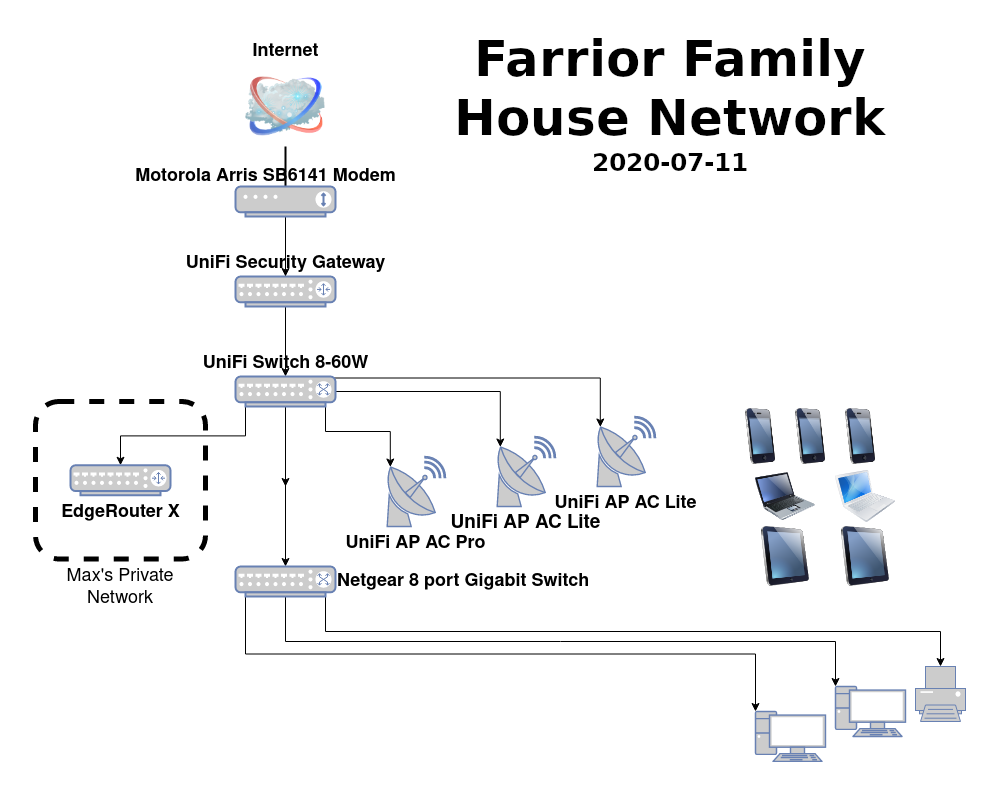
<p>Before the upgrades, there was an Ubiquiti EdgeRouter X, and Ubiquiti AC-Pro, and a Netgear gigabit switch. Fairly simple, everything worked.</p>

<p>The first task was to address the WiFi coverage issue by getting more access points. I got two Ubiquiti AC-Lite units, and I positioned them on the edges of the house, covering rooms where people spent time. The existing AC-Pro is very centrally located.</p>

<p>I had to be very careful choosing channels in the 2.4 GHz spectrum. I’ve talked about it in other articles, I have a Zigbee wireless network that’s used for some home automation devices. The Zigbee protocol <em>also</em> operates in the 2.4 GHz spectrum… Because of this, I’ve chosen to not use WiFi channel 11, and put my Zigbee network on channel 24. In order to use non-overlapping channals for my WAPs, I’m limited to a 20MHz wide Channel 1 and a 20 MHz Channel 6. With all these restrictions, I set my central AC-Pro to use Channel 6, and the two AC-Lite units (near the edges of the house) will both use Channel 1. I’m hoping that they’re far enough away that they do not interfere.</p>

<p>Another point I’d like to make is that Ubiquiti has created a web application named “UniFi” which is used to manage the whole line of UniFi products. This application is <strong>awesome</strong>. It’s so cool to be able to manage all three access points from one single interface. The downside is that the application needs to run on a computer, ideally something that’s on 24/7. If you’re like me, that’s no issue, but for less technical people that don’t have datacenters in their house, that may be inconvenient / challenging.</p>

<p>While using the UniFi application, I couldn’t help but to notice the pages I couldn’t use because I didn’t have a router in the UniFi line. (The EdgeRouter X is in the EdgeMax line.) Purely to make management easier, I decided to change routers to the UniFi Security Gateway. There was nothing wrong with the ERX, it just didn’t work with the slick UniFi application.</p>

<p>However, I realized that the VLANs I was using for different WiFi SSIDs would be an issue with the USG. The ERX had 4 LAN ports (all of which support VLANs) so plugging in a switch and 3 WAPs was not a progblem. The USG only has 2 LAN ports. And if I plug the WAPs into the Netgear (dumb) switch, I’d lose the VLAN tags… So I got a managed switch… in the UniFi produt line. The UniFi Switch-8-60W supports VLANS, PoE, and integrates into the UniFi application for management.</p>

<p>The installation and configuration went very smoothly. The USG is now the primary router. That connects to the UniFi switch. The three WAPs are all connected <em>and powered</em> by the switch. And all five devices are completely controlled by the UniFi application.</p>

<p>I hate to sound like a shill, but the Ubiquiti UniFi gear is slick.</p>

<div class="gallery">

<dl class="gallery-item">
<dt class="gallery-icon">
<a class="gallery-link" href="/images/farrior-house-network-diagram-01.png" title="" rel="one"><img src="/images/farrior-house-network-diagram-01-thumb.png" class="thumbnail" width="150" height="150" /></a></dt>
<dd class="gallery-caption"></dd></dl>

<br style="clear: both;" />

</div>]]></content><author><name>Max Farrior</name><email>mfarrior@gmail.com</email></author><category term="networking" /><summary type="html"><![CDATA[During the quarantine, the whole family is back in the house. After receiving some complaints about the WiFi coverage, I decided to overhaul the networking gear we had.]]></summary></entry><entry><title type="html">Making Ethernet Cables</title><link href="/2020/ethernet-cables/" rel="alternate" type="text/html" title="Making Ethernet Cables" /><published>2020-06-10T00:00:00+00:00</published><updated>2020-06-10T00:00:00+00:00</updated><id>/2020/ethernet-cables</id><content type="html" xml:base="/2020/ethernet-cables/"><![CDATA[<p>I actually started this a long while back and never finished. I bought a box of bulk Cat6 cable and some RJ-45 connectors and I borrowed a friend’s crimper tool.</p>

<p>For some reason I wasn’t very successful. I don’t remember exactly what happened, but I remember it being a lot more work than I thought, I had to return the crimper and I never came back to this.</p>

<p>Well, on a whim, I bought a crimper and a cable tester. This time around, it really wasn’t too bad. Tedious, yes, but I was able to manage. Things went much more smoothly after after the first three or four, I found a rhythm.</p>

<p>From last time, I already had a bunch (quantity sixteen) of roughly ten foot cables that were unterminated. Plus a few other smaller lengths. I went ahead and put connectors on all the cable I had. Each cable takes about eight to ten minutes to complete. I dedicated about 45 minutes a day for about a week to get everything done.</p>

<p>Hopefully, I won’t need to buy Ethernet cables any time soon.</p>]]></content><author><name>Max Farrior</name><email>mfarrior@gmail.com</email></author><category term="networking" /><summary type="html"><![CDATA[I actually started this a long while back and never finished. I bought a box of bulk Cat6 cable and some RJ-45 connectors and I borrowed a friend’s crimper tool.]]></summary><media:thumbnail xmlns:media="http://search.yahoo.com/mrss/" url="/images/ethernet-cables-01.jpg" /><media:content medium="image" url="/images/ethernet-cables-01.jpg" xmlns:media="http://search.yahoo.com/mrss/" /></entry><entry><title type="html">June Food</title><link href="/2020/june-food/" rel="alternate" type="text/html" title="June Food" /><published>2020-06-07T00:00:00+00:00</published><updated>2020-06-07T00:00:00+00:00</updated><id>/2020/june-food</id><content type="html" xml:base="/2020/june-food/"><![CDATA[<p>So I wanted to share some recipes for food I’ve recently made.</p>

<h3 id="hummus">Hummus</h3>

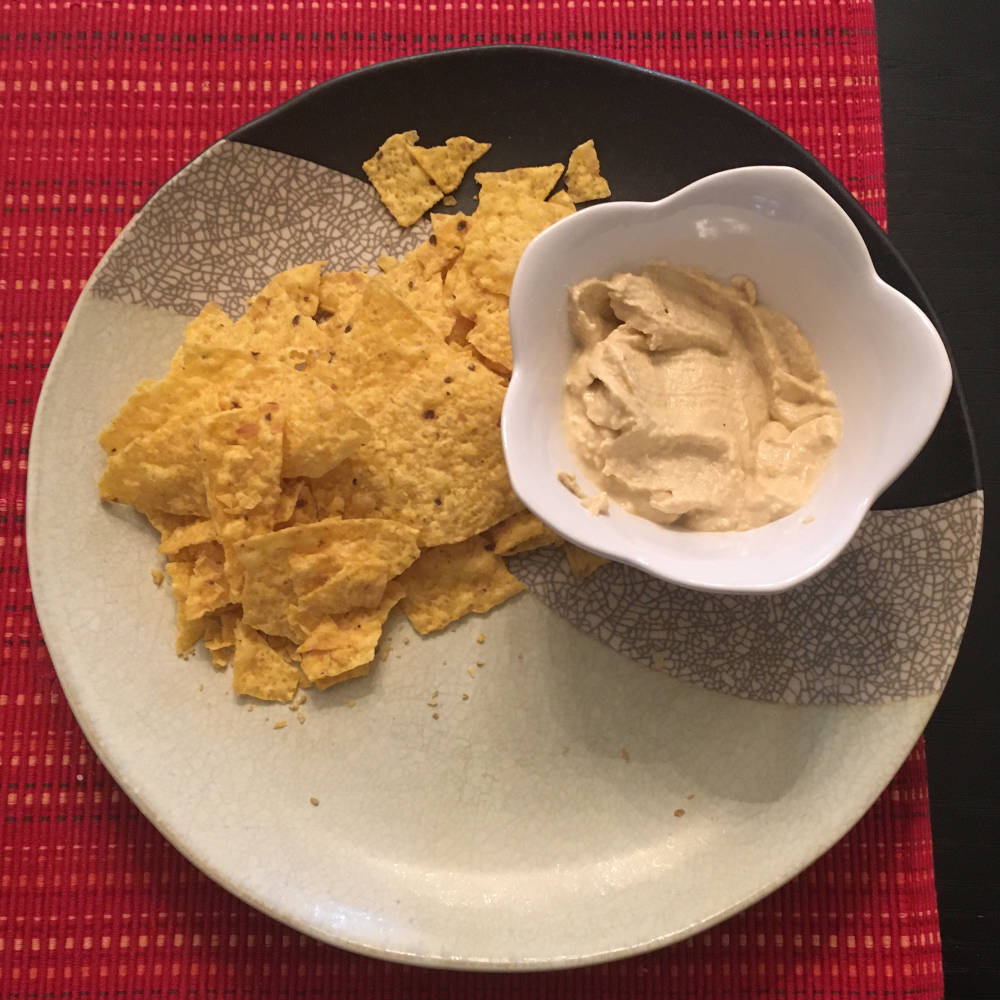
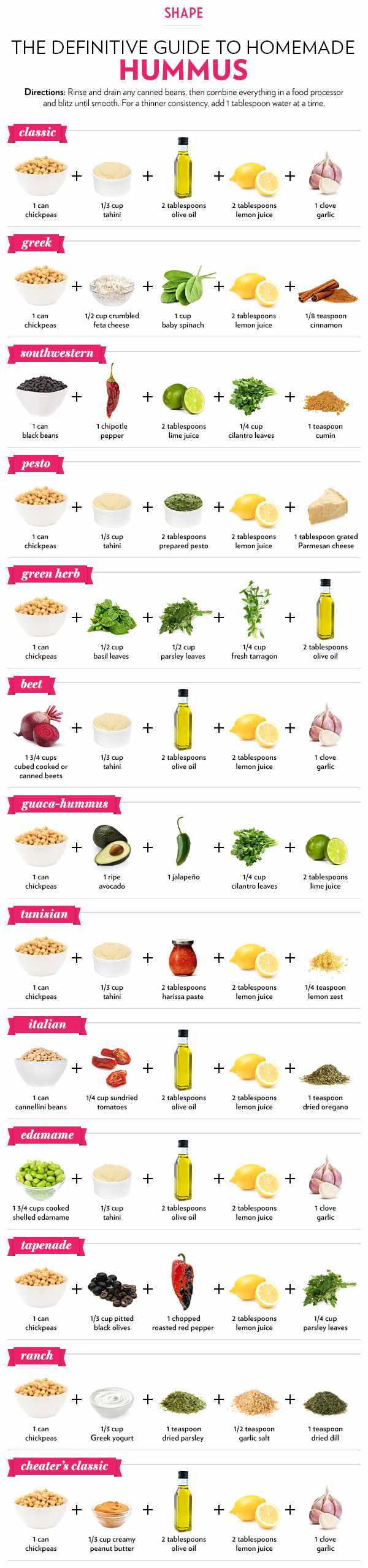
<p><a href="https://static.onecms.io/wp-content/uploads/sites/35/2013/11/04013045/hummus_091213.jpg">I’ve had this hummus recipie infographic saved</a> for a while. I made the Classic and Tapanade versions.</p>

<p>Both turned out pretty good and were not difficult. I do recommend using a food processor, and not a blender. <em>Ahem..</em> a friend told me that a blender would have trouble mixing everything because the the mixture is so thick. You don’t want the bottom half to be mixing while the top half is stuck in place..</p>

<div class="gallery">

<dl class="gallery-item">
<dt class="gallery-icon">
<a class="gallery-link" href="/images/june2020food-01.jpg" title="" rel="hummus"><img src="/images/june2020food-01-thumb.jpg" class="thumbnail" width="150" height="150" /></a></dt>
<dd class="gallery-caption"></dd></dl>

<br style="clear: both;" />

</div>

<h3 id="vegetarian-sandwich">Vegetarian Sandwich</h3>

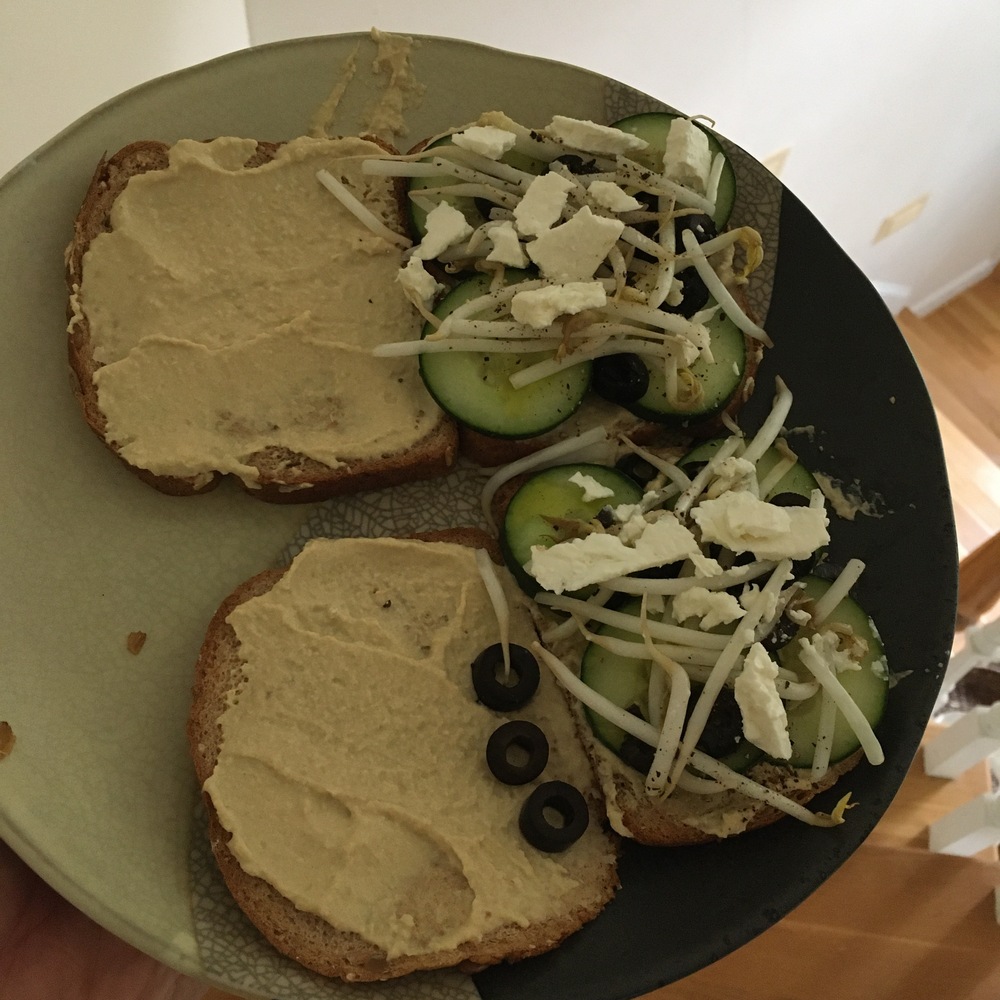
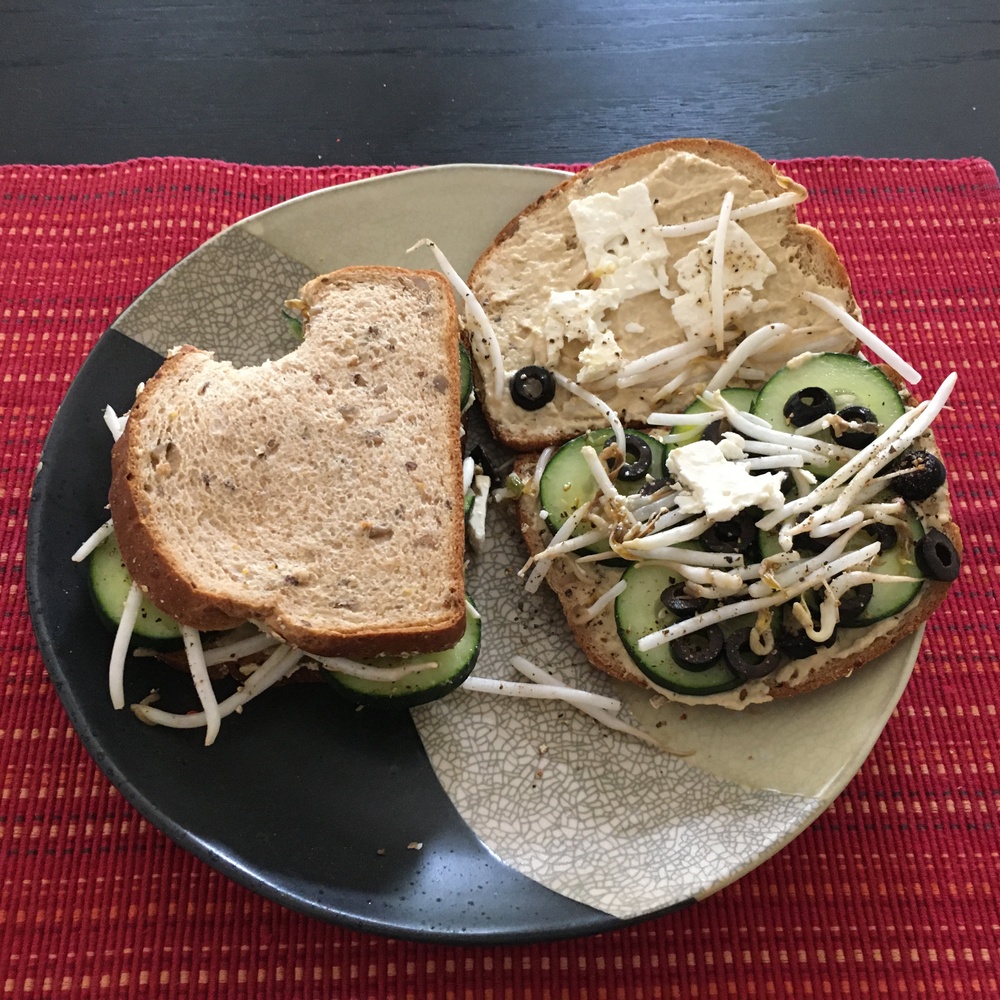
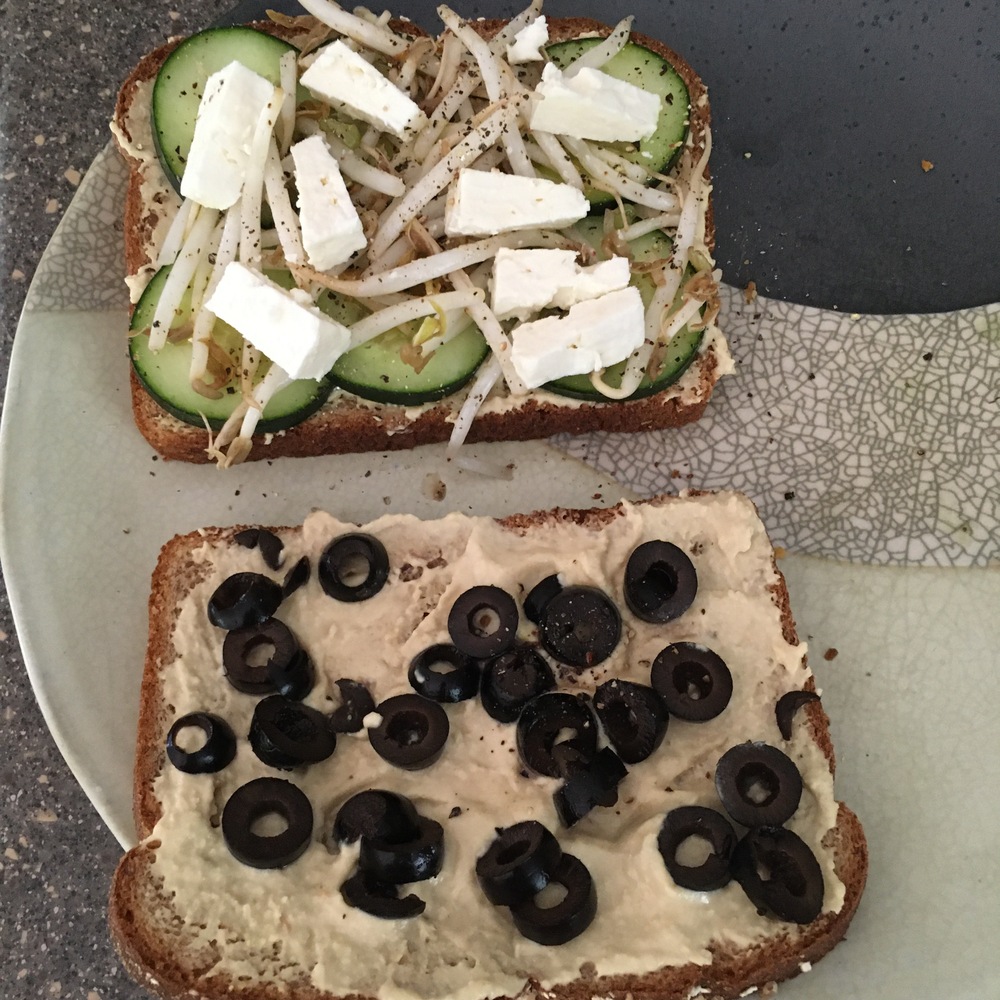
<p>Not sure what to call this. I found the idea from [this Reddit comment]. I had already made some hummus, so I made the sandwich. It’s bread, hummus, cucumber, black olives, bean sprouts, black pepper, a drizzle of olive oil, and feta cheese.</p>

<p>I was a little unsure about how it would taste, but it was quite delicious. I had it for lunch several times.</p>

<div class="gallery">

<dl class="gallery-item">
<dt class="gallery-icon">
<a class="gallery-link" href="/images/june2020food-02.jpg" title="" rel="veggiesandwich"><img src="/images/june2020food-02-thumb.jpg" class="thumbnail" width="150" height="150" /></a></dt>
<dd class="gallery-caption"></dd></dl>

<dl class="gallery-item">
<dt class="gallery-icon">
<a class="gallery-link" href="/images/june2020food-03.jpg" title="" rel="veggiesandwich"><img src="/images/june2020food-03-thumb.jpg" class="thumbnail" width="150" height="150" /></a></dt>
<dd class="gallery-caption"></dd></dl>

<dl class="gallery-item">
<dt class="gallery-icon">
<a class="gallery-link" href="/images/june2020food-04.jpg" title="" rel="veggiesandwich"><img src="/images/june2020food-04-thumb.jpg" class="thumbnail" width="150" height="150" /></a></dt>
<dd class="gallery-caption"></dd></dl>

<br style="clear: both;" />

</div>

<h3 id="chorizo-burgers">Chorizo Burgers</h3>

<p>This is something else I found in a Reddit comment. Mix in Chorizo with your ground beef, then grill it.</p>

<p>The best ground beef for brugers is 80% lean because you want there to be some moisture (and flavor) in the high-heat grill. I also use the Mexican-style chorizo (brand: <a href="https://www.harristeeter.com/shop/store/306/product/00027331000592/details">La Banderita</a>) which is intended to be removed from its casing and cooked. Its essentially ground sausage (rather than the typical sausage link).</p>

<p>I didn’t measure exactly, but I estimate that I used a 75% ground beef and 25% chorizo mixture. I also tried a roughly 67% ground beef and 33% chorizo mix, and that worked well too. No preference, but I wouldn’t go higher than that because the chorizo has fat in it too, and it got pretty fatty.</p>

<h3 id="granola">Granola</h3>

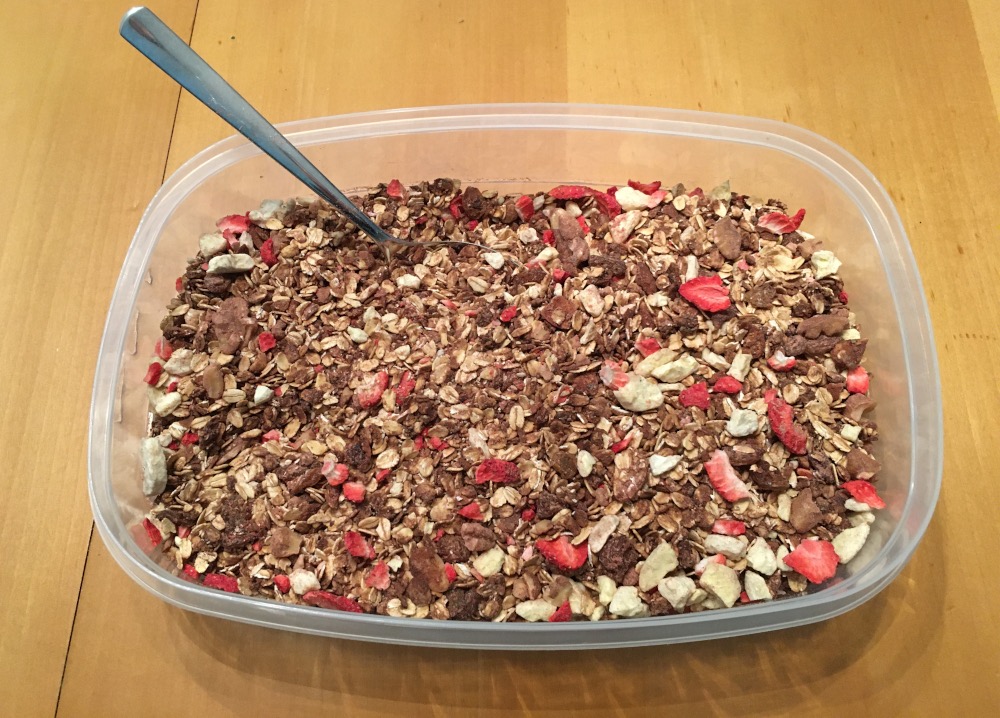
<p>Came across <a href="https://nutritionstudies.org/recipes/breakfast/guilt-free-chocolate-granola/">this granola recipe</a> and decided to give it a go.</p>

<p>First off, <em>this makes a lot</em> of granola. I filled a 2+ liter container. In hindsight, I would use 6 cups of oats. The rolled oats come in 12 cup containers at the grocery store near me, so that nicely makes two servings.</p>

<p>Also, you can completely improvise on the ingredients. I added more nuts as well as chia seeds, and dried mango and dried cranberries. And Trader Joe’s has a great selection of nuts as well as dried and freeze-dried fruits.</p>

<p>This turned out really great, it’s crunchy, sweet, and filling. It’s not hard to make and there’s no added sugar, just what’s naturally in the fruit. Two thumbs up on this recipe.</p>

<p>I’ve also had great results mixing this granola into nonfat Greek yogurt. Greek yogurt also has a <em>lot</em> of protein in it, something I didn’t realize.</p>

<div class="gallery">

<dl class="gallery-item">
<dt class="gallery-icon">
<a class="gallery-link" href="/images/june2020food-05.jpg" title="" rel="granola"><img src="/images/june2020food-05-thumb.jpg" class="thumbnail" width="150" height="150" /></a></dt>
<dd class="gallery-caption"></dd></dl>

<br style="clear: both;" />

</div>]]></content><author><name>Max Farrior</name><email>mfarrior@gmail.com</email></author><category term="food" /><summary type="html"><![CDATA[So I wanted to share some recipes for food I’ve recently made.]]></summary></entry><entry><title type="html">Home Automation and Docker</title><link href="/2020/home-automation-and-docker/" rel="alternate" type="text/html" title="Home Automation and Docker" /><published>2020-05-20T00:00:00+00:00</published><updated>2020-05-20T00:00:00+00:00</updated><id>/2020/home-automation-and-docker</id><content type="html" xml:base="/2020/home-automation-and-docker/"><![CDATA[<p>This is something I had put off for a while. I won’t go into what Docker is or why it’s awesome, that’s an easy Google.</p>

<p>I moved to Docker so I could more easily add new programs to my Home Automation setup. In particular, I wanted to try out <a href="https://github.com/OpenZWave/Zwave2Mqtt">Zwave2Mqtt</a>. And after realizing that I’d need to not only install the program, but also the Open-Zwave library.. which could only be done by downloading the source, compiling, and adding some paths to an environmental variable…</p>

<p>All that is completely possible, but it’s a lot of moving pieces. If I needed to update that library, I’d have to get the source and compile again. It’s just a very manual process.</p>

<p>Add that on top of updating the Zwave2Mqtt program itself, which has its own process. And that’s on top of every other piece of my HA setup, which are installed in various places across the system. It was just a lot of manual work, and I was getting tired of it.</p>

<h3 id="enter-docker">Enter Docker</h3>

<p>Moving to Docker would simplify a lot of that. Each program lives in its own container and the container has everything it needs to run. To update, just get a newer version of the container.</p>

<p>I’m also going to use <code class="language-plaintext highlighter-rouge">docker-compose</code>, which will allow me to define the configuration of many Docker containers, and bring them all up and down together.</p>

<p>Implementing this wasn’t too bad. There were definitely some snags and some learning that had to be done, but no major issues. See my post on <a href="">getting PicoTTS installed</a>.</p>

<p>I started with Zwave2Mqtt, and carefully moved each other HA piece to a container. This mostly involved stopping the existing service, and adding more lines to my <code class="language-plaintext highlighter-rouge">docker-compose.yml</code> file, and tweaking it for my particular environment (and figuring out why the container didn’t start, or why it couln’t access some other container).</p>

<h3 id="results">Results</h3>

<p>There’s not much to <em>show</em> you. <a href="">Here’s my <code class="language-plaintext highlighter-rouge">docker-compose.yml</code> file</a> that I’m using.</p>

<div class="language-plaintext highlighter-rouge"><div class="highlight"><pre class="highlight"><code>$ docker ps

CONTAINER ID        IMAGE                              COMMAND                  CREATED             STATUS                   PORTS                    NAMES
ffffffffffff        homeassistant-maxmods:latest       "/init"                  3 weeks ago         Up 3 hours (healthy)                              homeassistant
ffffffffffff        carldebilly/zigbee2mqttassistant   "dotnet Zigbee2MqttA…"   3 weeks ago         Up 3 hours               0.0.0.0:8092-&gt;80/tcp     zigbee2mqttAssistant
ffffffffffff        mariadb                            "docker-entrypoint.s…"   3 weeks ago         Up 3 hours               0.0.0.0:3306-&gt;3306/tcp   mariadb
ffffffffffff        robertslando/zwave2mqtt:latest     "docker-entrypoint.s…"   3 weeks ago         Up 3 hours (healthy)   0.0.0.0:8091-&gt;8091/tcp   zwave2mqtt
ffffffffffff        koenkk/zigbee2mqtt                 "./run.sh"               3 weeks ago         Up 3 hours                                        zigbee2mqtt
</code></pre></div></div>

<p>The real advantage is how easily I can add and update my programs. All the dependency resolution and environment setup is handled by Docker (in the images). All I have to do is add new containers and configure them in my <code class="language-plaintext highlighter-rouge">docker-compose.yml</code> file.</p>

<p>This is best demonstrated with how I set up Zwave2Mqtt. All I had to do was add the <code class="language-plaintext highlighter-rouge">docker-compose</code> lines, adjust the path to my USB Zwave stick, and then start the container. That’s it. Brand new application to do something new, set up just like that.</p>

<p>In a similar vein, after seeing Zwave2Mqtt’s nice web interface, I really wanted something similar for zigbee2mqtt. Turns out somebody already made one, <a href="https://github.com/yllibed/Zigbee2MqttAssistant">Zigbee2Mqtt Assistant</a>. Installation was literally <a href="https://github.com/yllibed/Zigbee2MqttAssistant#docker-compose-example">just adding some lines to my <code class="language-plaintext highlighter-rouge">docker-compose</code> file</a>. Start the container you can access the web interface.</p>

<p>I’m really happy with how this turned out. My Home Automation stack is much simpler to set up and manage, and future growth will be much easier (NodeRED, I see you).</p>]]></content><author><name>Max Farrior</name><email>mfarrior@gmail.com</email></author><category term="[&quot;Home Automation&quot;, &quot;Docker&quot;]" /><summary type="html"><![CDATA[This is something I had put off for a while. I won’t go into what Docker is or why it’s awesome, that’s an easy Google.]]></summary></entry><entry><title type="html">Home Assistant in Docker with PicoTTS</title><link href="/2020/homeassistant-docker-picotts/" rel="alternate" type="text/html" title="Home Assistant in Docker with PicoTTS" /><published>2020-05-20T00:00:00+00:00</published><updated>2020-05-20T00:00:00+00:00</updated><id>/2020/homeassistant-docker-picotts</id><content type="html" xml:base="/2020/homeassistant-docker-picotts/"><![CDATA[<p>One issue I discovered is that the <a href="https://registry.hub.docker.com/r/homeassistant/home-assistant">official Home Assistant docker image</a> does not support the <a href="https://www.home-assistant.io/integrations/picotts/">PicoTTS</a> component. The image simply does not have the PicoTTS program.</p>

<p>On a side note, this seems to be a <a href="https://community.home-assistant.io/t/integrate-native-picotts-library-into-hass-io-home-assistant-docker-image/186309">known</a> <a href="https://github.com/home-assistant/core/issues/24749">issue</a>, but this has not been addressed.</p>

<h3 id="custom-image-creation">Custom Image Creation</h3>

<p>To get PicoTTS working, I need to add the picotts program to the Home Assistant image, resulting in my own Home Assistant image. This was surprisingly easy.</p>

<p>First, I created a file: <code class="language-plaintext highlighter-rouge">homeassistant-picotts.dockerfile</code>.</p>

<div class="language-plaintext highlighter-rouge"><div class="highlight"><pre class="highlight"><code># More info here https://www.reddit.com/r/docker/comments/c8jela/can_we_add_packages_to_a_docker_container/

# Start with the official Home Assistant image
FROM homeassistant/home-assistant:latest

# Install PicoTTS
RUN apk add --no-cache picotts --repository=http://dl-cdn.alpinelinux.org/alpine/edge/testing
</code></pre></div></div>

<p>And then build your own image.</p>

<div class="language-plaintext highlighter-rouge"><div class="highlight"><pre class="highlight"><code>$ docker build -f homeassistant-picotts.dockerfile -t homeassistant-picotts .
</code></pre></div></div>

<p>This will create the <code class="language-plaintext highlighter-rouge">homeassistant-picotts</code> Docker image, which you can use in your <code class="language-plaintext highlighter-rouge">docker-compose.yml</code> file instead of the official Home Assistant image.</p>

<h3 id="updating-home-assistant">Updating Home Assistant</h3>

<p><strong>You will need to do this every time you update Home Assistant</strong>. Super inconvenient, but luckily, updating a Docker container is trivially easy, so adding a step isn’t the worst.</p>

<steps here="">
</steps>]]></content><author><name>Max Farrior</name><email>mfarrior@gmail.com</email></author><category term="[&quot;Home Automation&quot;, &quot;Docker&quot;]" /><summary type="html"><![CDATA[One issue I discovered is that the official Home Assistant docker image does not support the PicoTTS component. The image simply does not have the PicoTTS program.]]></summary></entry><entry><title type="html">DIY Garage Door Opener</title><link href="/2020/diy-garage-door-opener/" rel="alternate" type="text/html" title="DIY Garage Door Opener" /><published>2020-05-10T00:00:00+00:00</published><updated>2020-05-10T00:00:00+00:00</updated><id>/2020/diy-garage-door-opener</id><content type="html" xml:base="/2020/diy-garage-door-opener/"><![CDATA[<p>I wanted to incorporate my garage doors into my Home Automation system. With a simple wall button that causes the garage door to open and close, surely I could build something that does this and is controllable by Home Assistant.</p>

<p>Well I can :D</p>

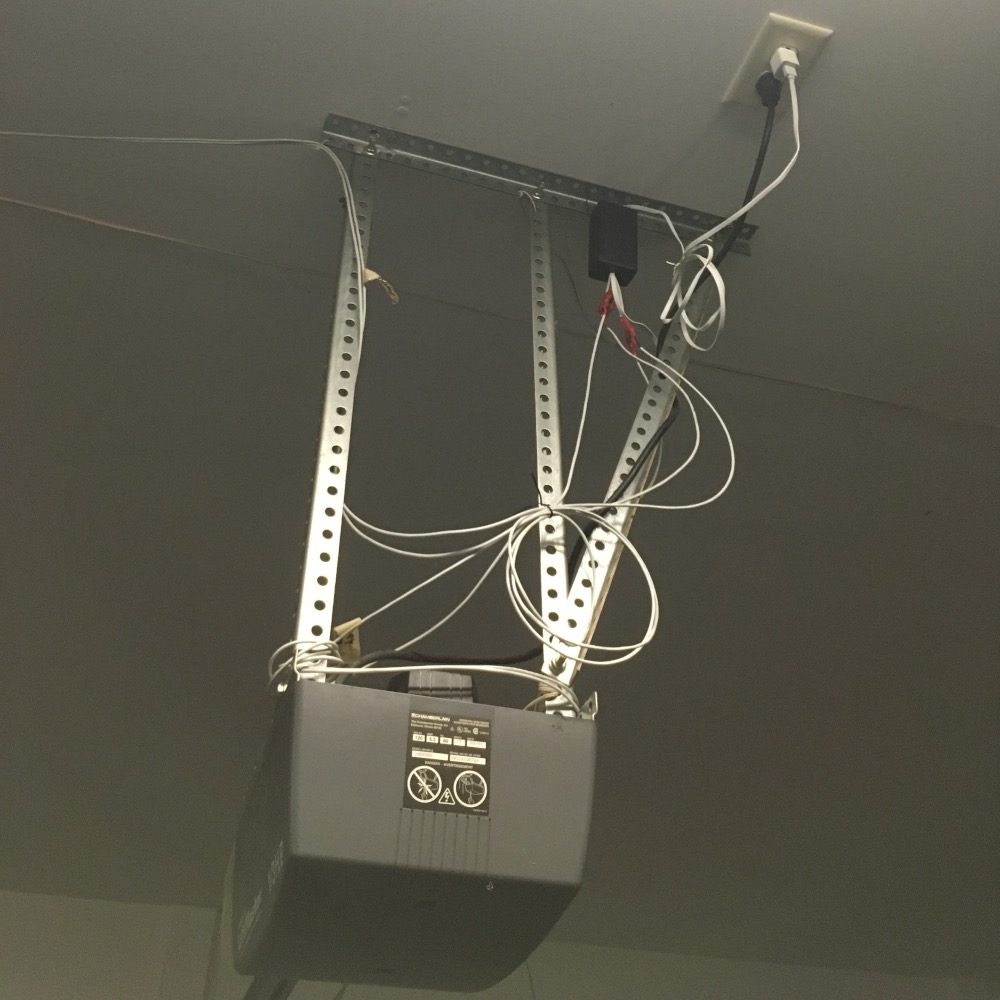
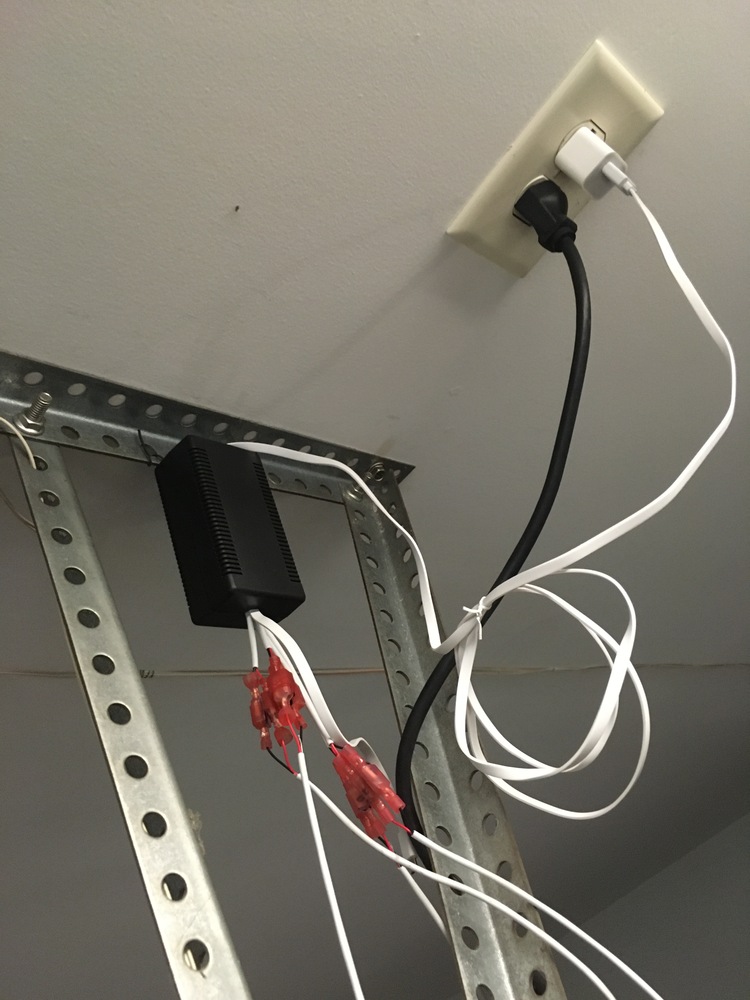
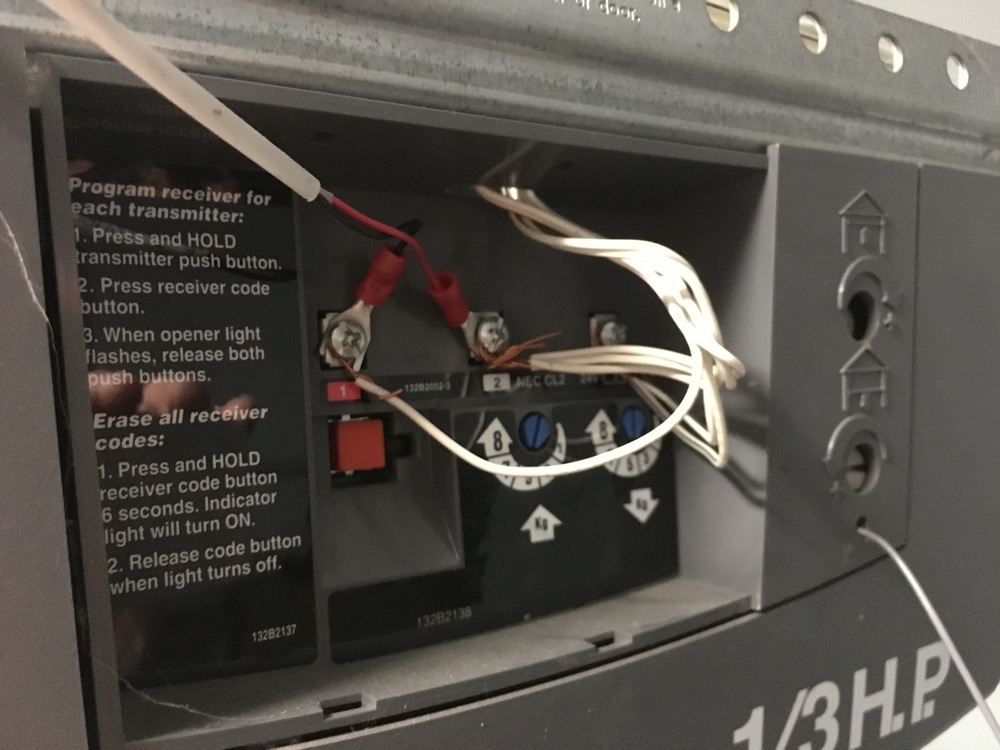
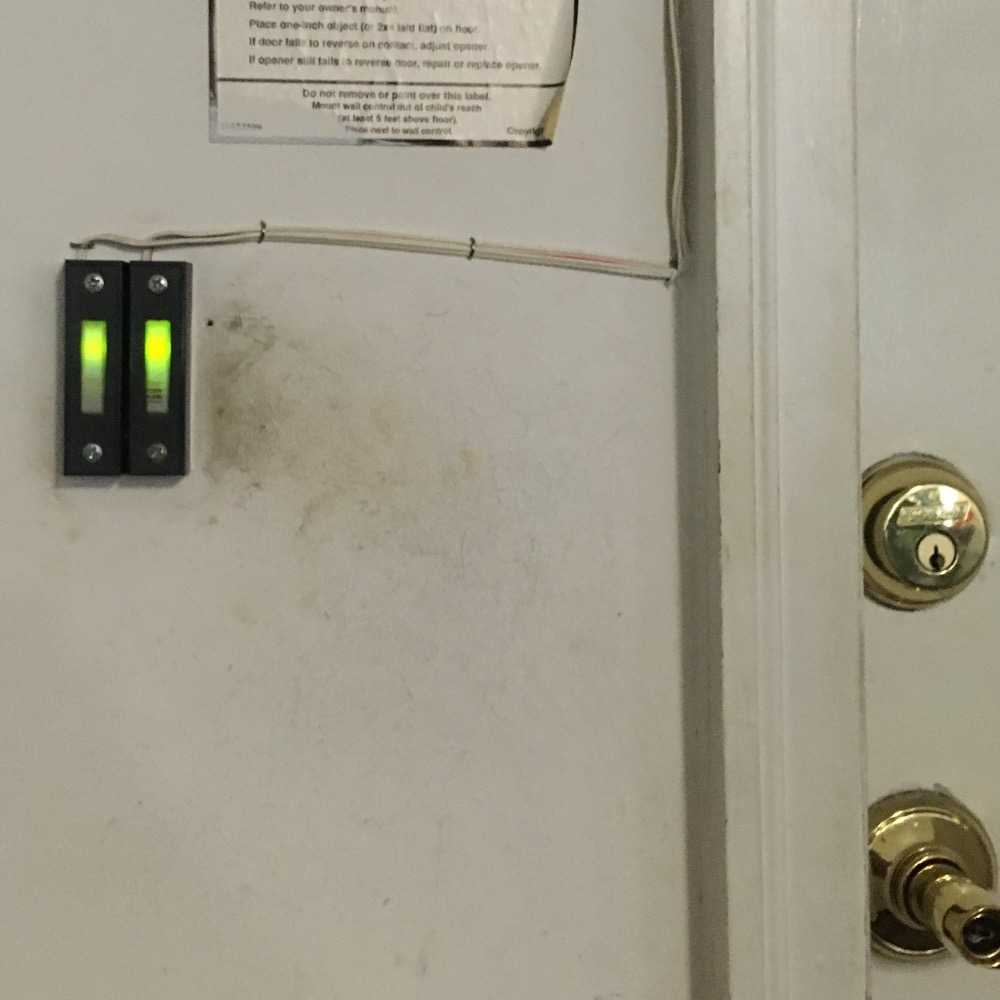
<p>So I have a Chamberlain 1000SDR manufactured in 2001. After some investigation, I found that there’s normally ~16 VDC between the two wires that go the the wall button. Pressing the wall button causes this to drop to zero, and when that happens, the garage door opens.</p>

<h1 id="hardware">Hardware</h1>

<div class="gallery">

<dl class="gallery-item">
<dt class="gallery-icon">
<a class="gallery-link" href="/images/diy_garage_door_opener-101.jpg" title="The device put together" rel="hardware"><img src="/images/diy_garage_door_opener-101-thumb.jpg" class="thumbnail" width="150" height="150" /></a></dt>
<dd class="gallery-caption">The device put together</dd></dl>

<dl class="gallery-item">
<dt class="gallery-icon">
<a class="gallery-link" href="/images/diy_garage_door_opener-102.jpg" title="Quick-connect connectors" rel="hardware"><img src="/images/diy_garage_door_opener-102-thumb.jpg" class="thumbnail" width="150" height="150" /></a></dt>
<dd class="gallery-caption">Quick-connect connectors</dd></dl>

<dl class="gallery-item">
<dt class="gallery-icon">
<a class="gallery-link" href="/images/diy_garage_door_opener-103.jpg" title="The relay module" rel="hardware"><img src="/images/diy_garage_door_opener-103-thumb.jpg" class="thumbnail" width="150" height="150" /></a></dt>
<dd class="gallery-caption">The relay module</dd></dl>

<dl class="gallery-item">
<dt class="gallery-icon">
<a class="gallery-link" href="/images/diy_garage_door_opener-104.jpg" title="Overhead view of the connections" rel="hardware"><img src="/images/diy_garage_door_opener-104-thumb.jpg" class="thumbnail" width="150" height="150" /></a></dt>
<dd class="gallery-caption">Overhead view of the connections</dd></dl>

<br style="clear: both;" /><dl class="gallery-item">
<dt class="gallery-icon">
<a class="gallery-link" href="/images/diy_garage_door_opener-105.jpg" title="Different angle of the connections" rel="hardware"><img src="/images/diy_garage_door_opener-105-thumb.jpg" class="thumbnail" width="150" height="150" /></a></dt>
<dd class="gallery-caption">Different angle of the connections</dd></dl>

<dl class="gallery-item">
<dt class="gallery-icon">
<a class="gallery-link" href="/images/diy_garage_door_opener-106.jpg" title="Different angle of the connections" rel="hardware"><img src="/images/diy_garage_door_opener-106-thumb.jpg" class="thumbnail" width="150" height="150" /></a></dt>
<dd class="gallery-caption">Different angle of the connections</dd></dl>

<dl class="gallery-item">
<dt class="gallery-icon">
<a class="gallery-link" href="/images/diy_garage_door_opener-107.jpg" title="Different angle of the connections" rel="hardware"><img src="/images/diy_garage_door_opener-107-thumb.jpg" class="thumbnail" width="150" height="150" /></a></dt>
<dd class="gallery-caption">Different angle of the connections</dd></dl>

<dl class="gallery-item">
<dt class="gallery-icon">
<a class="gallery-link" href="/images/diy_garage_door_opener-108.jpg" title="Final mounting positioning" rel="hardware"><img src="/images/diy_garage_door_opener-108-thumb.jpg" class="thumbnail" width="150" height="150" /></a></dt>
<dd class="gallery-caption">Final mounting positioning</dd></dl>

<br style="clear: both;" /><dl class="gallery-item">
<dt class="gallery-icon">
<a class="gallery-link" href="/images/diy_garage_door_opener-109.jpg" title="Inside the enclosure" rel="hardware"><img src="/images/diy_garage_door_opener-109-thumb.jpg" class="thumbnail" width="150" height="150" /></a></dt>
<dd class="gallery-caption">Inside the enclosure</dd></dl>

<dl class="gallery-item">
<dt class="gallery-icon">
<a class="gallery-link" href="/images/diy_garage_door_opener-110.jpg" title="Power connection" rel="hardware"><img src="/images/diy_garage_door_opener-110-thumb.jpg" class="thumbnail" width="150" height="150" /></a></dt>
<dd class="gallery-caption">Power connection</dd></dl>

<br style="clear: both;" />

</div>

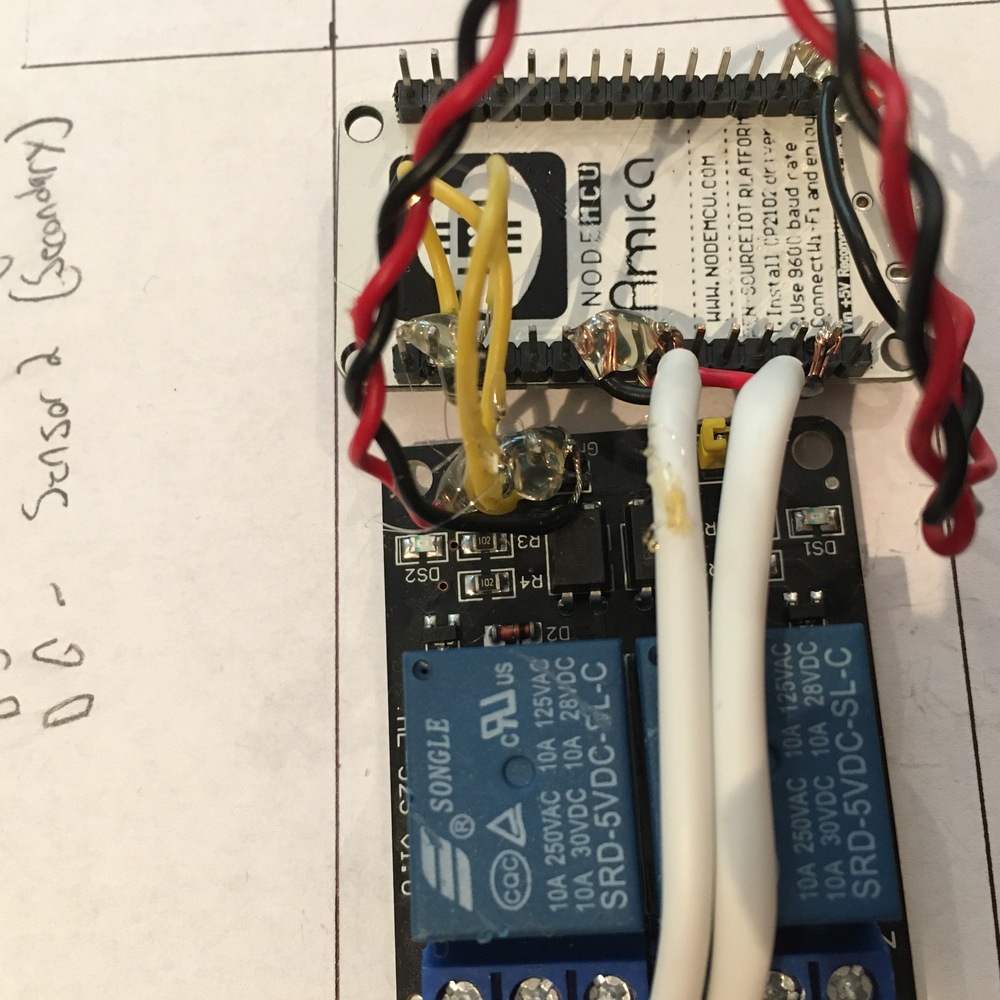
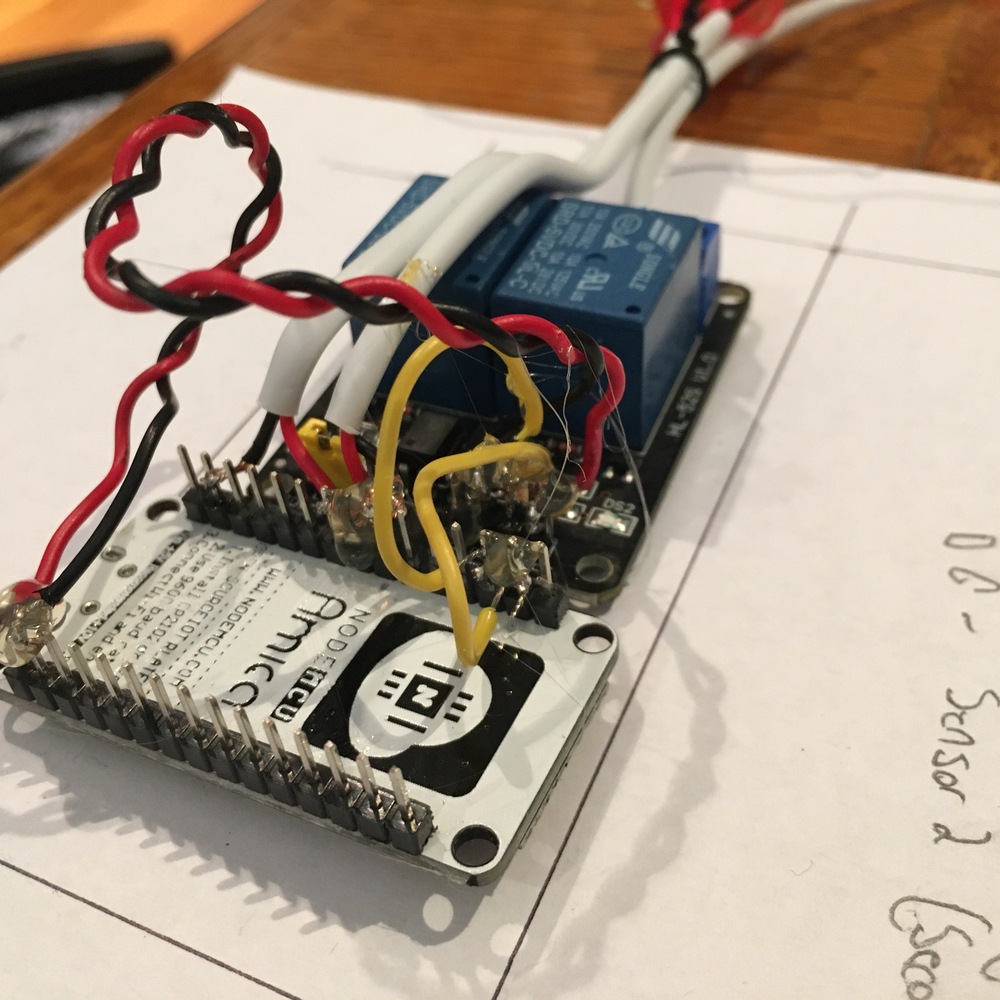
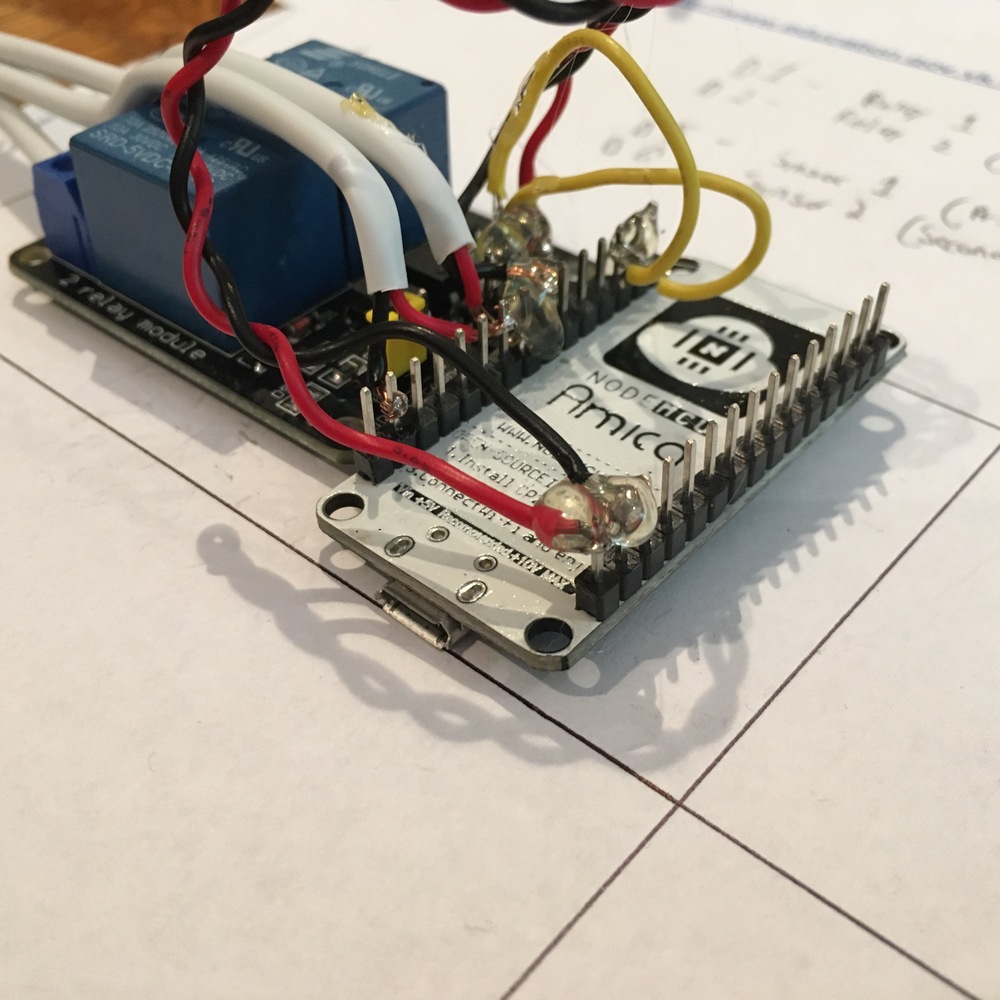
<p>I thought this would be a perfect use of a ESP8266. I still have a few NodMCU units on hand that would be perfect.</p>

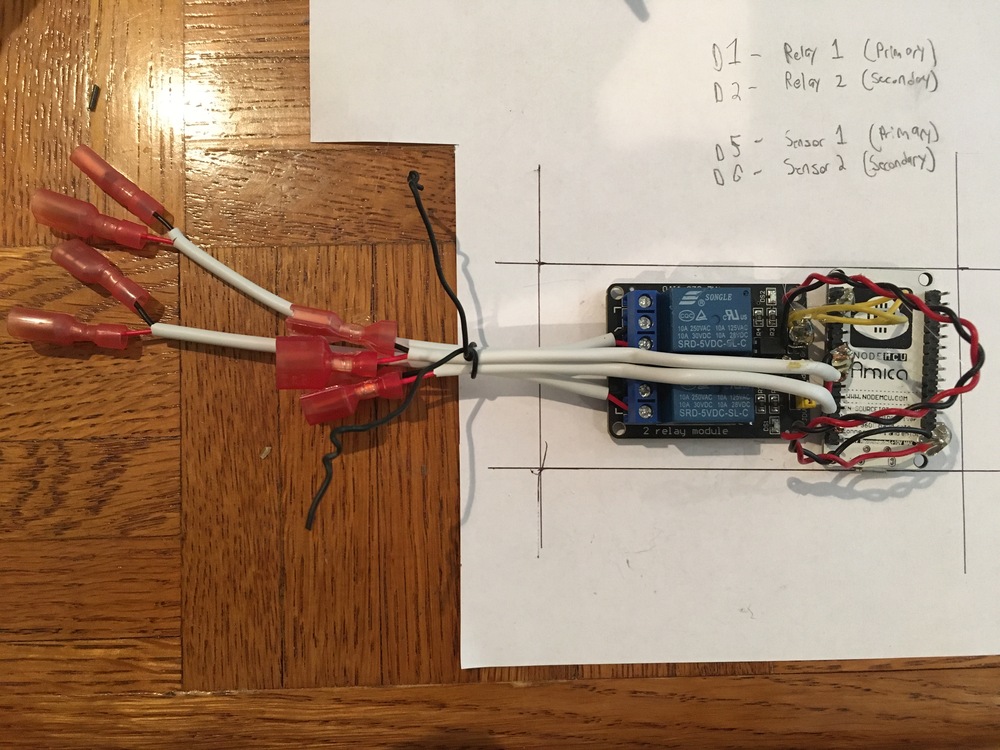
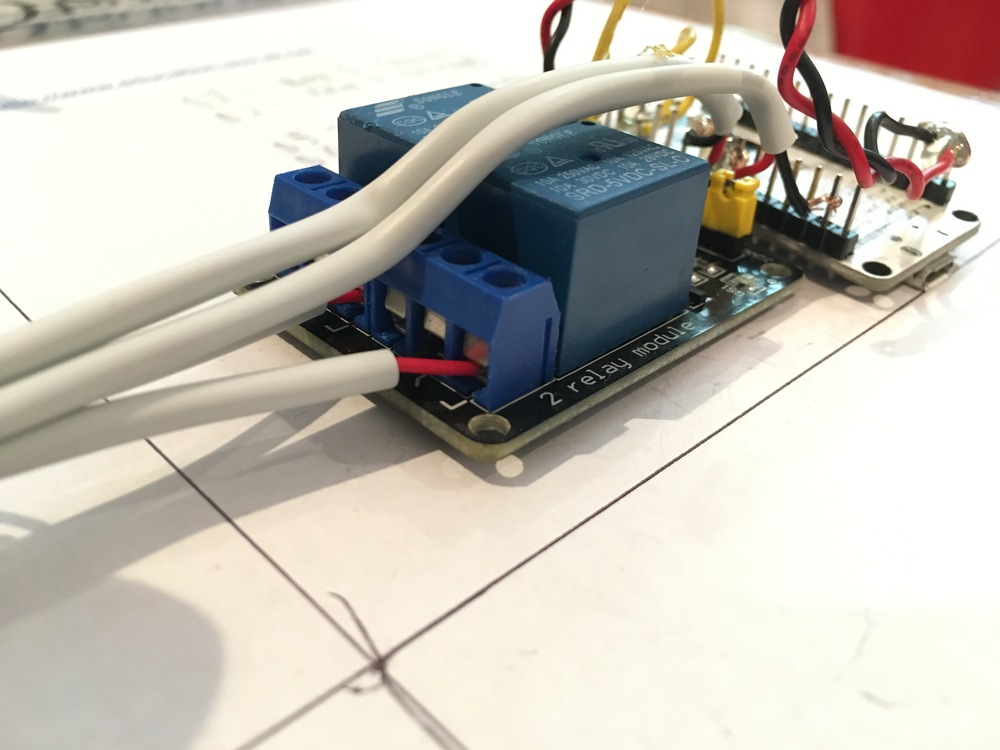
<p>To achieve some electrical isolation, I figured it would be best to use a relay to trigger the garage door. I got a module with two relays because I have two garage doors to control.</p>

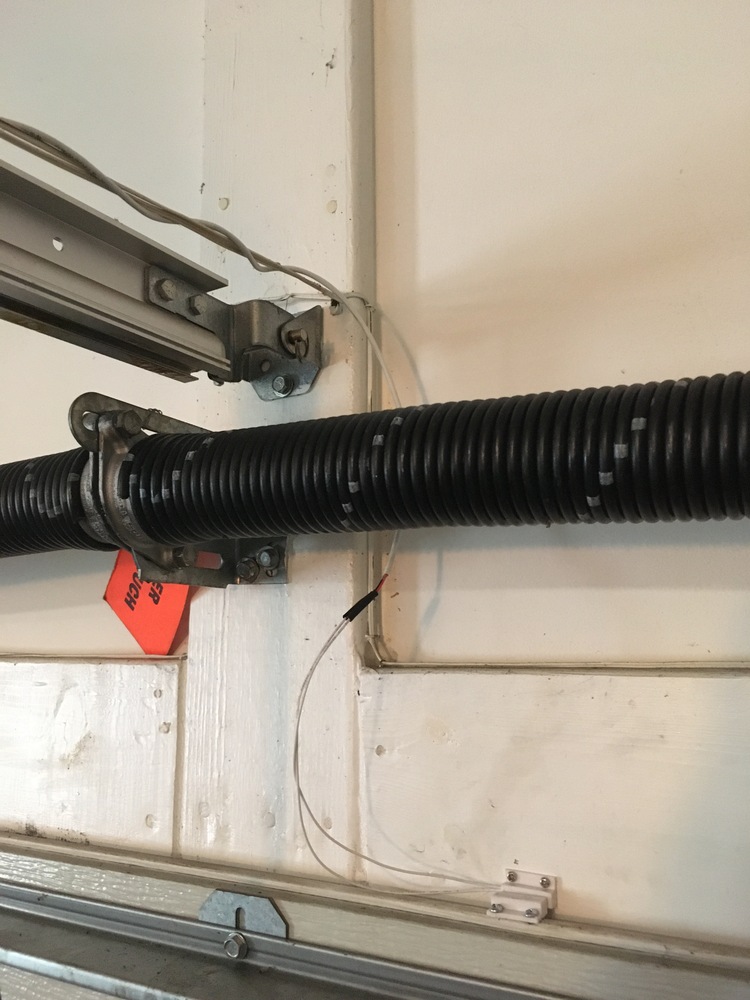
<p>I also ordered two generic reed switches so I could detect if each garage door was closed or not. In hindsight, it would have been better to use <em>two</em> reed switches per door. This would allow me to detect both “fully closed” and “fully open”. (With one reed switch, I can only detect “fully closed” or “not fully closed”. That might mean fully open, or stuck halfway.)</p>

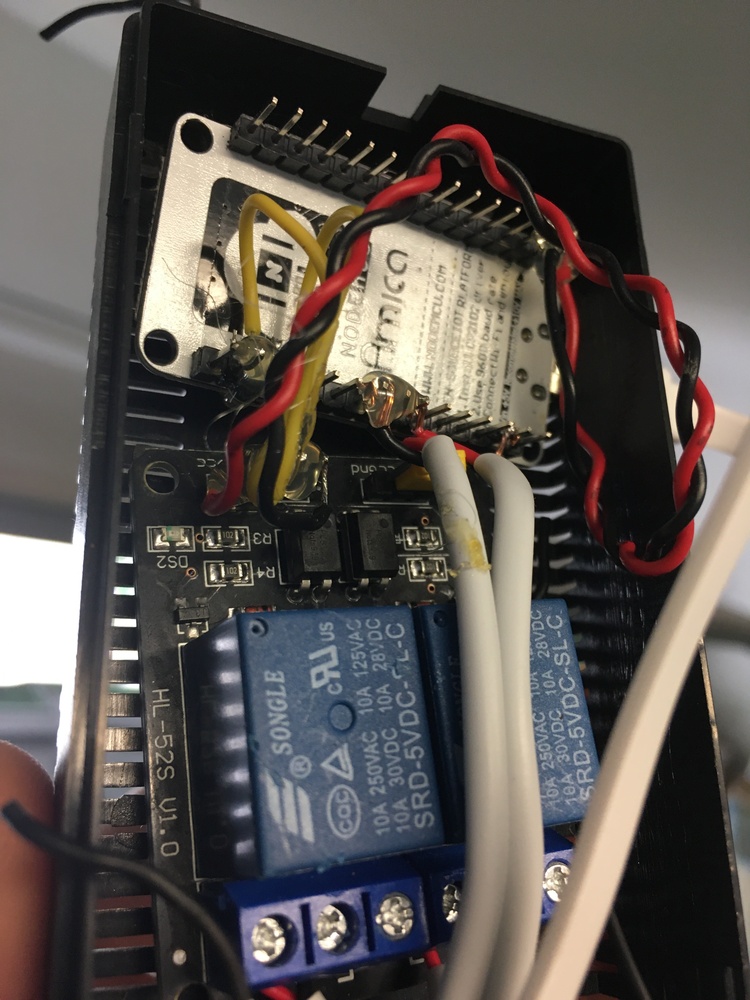
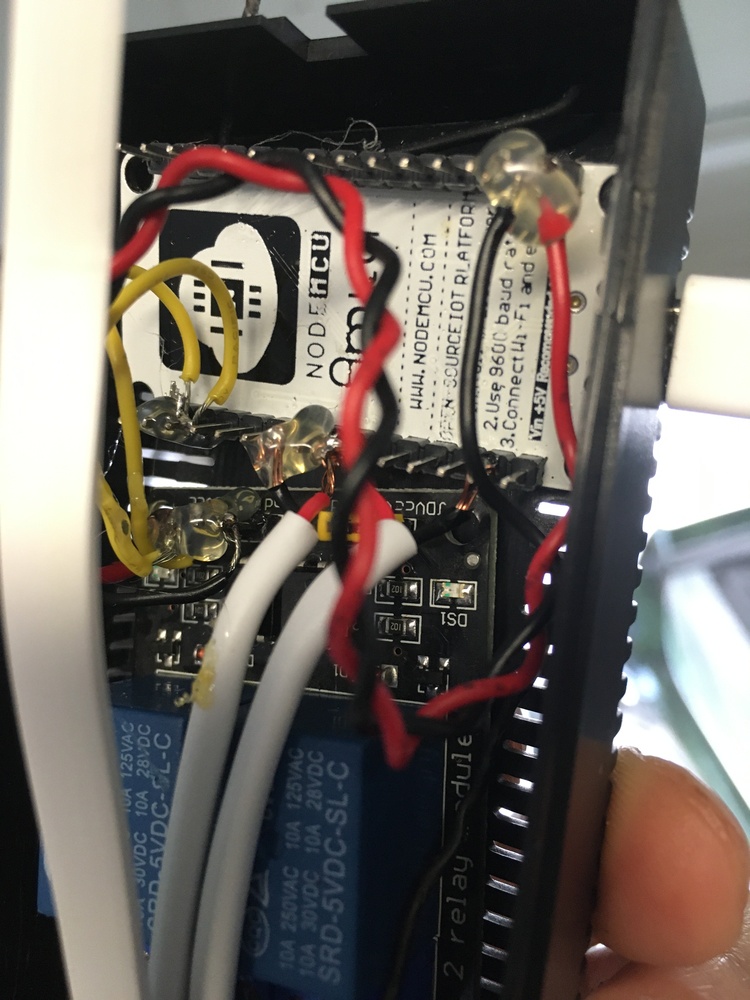
<p>Everything is wired to the NodeMCU. I soldered directly to pins because I thought it would be secure than using jumper cables. The relays are connected to pins <code class="language-plaintext highlighter-rouge">D1</code> and <code class="language-plaintext highlighter-rouge">D2</code>, and the reed switches are connected to <code class="language-plaintext highlighter-rouge">D5</code> and <code class="language-plaintext highlighter-rouge">D6</code>. Power for the relay module comes directly from the <code class="language-plaintext highlighter-rouge">Vin</code> of the NodeMCU.</p>

<p>One good idea I had was to use quick-connect connectors on the wires going to the relays and reed switches. This lets me work on the opener unit without dealing with long wires to the other components.</p>

<p>Nothing secures the components inside the enclosure box. The unit is reasonably held together by the white wires tied together. I wouldn’t call it <em>secure</em>, but it’s secure enough to be handled. Between that and the fact there’s not much space in the enclosure box, everything stays together, there’s not much wiggle room or opportunity for something to be pulled apart.</p>

<h1 id="software">Software</h1>

<p>I’ve great experiences with <a href="https://esphome.io/">ESPHome</a> for ESP8266 devices. You tell ESPHome what you want the device to do, ESPHome will then compile a firmware that does all those things. ESPHome was designed to make ESP8266 devices interface with Home Assistant. It makes the software side really simple, you don’t have to dive into code, you don’t have to figure out how to compile and upload the firmware.</p>

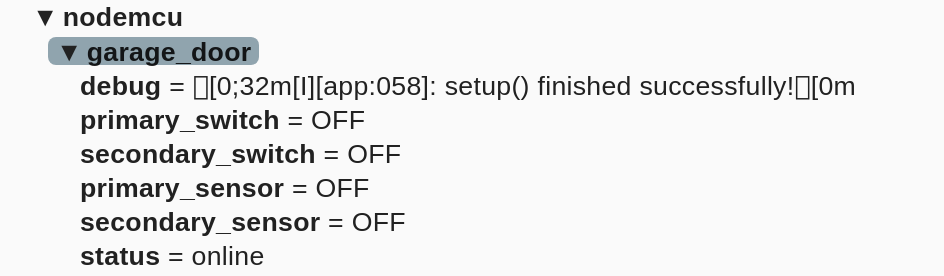
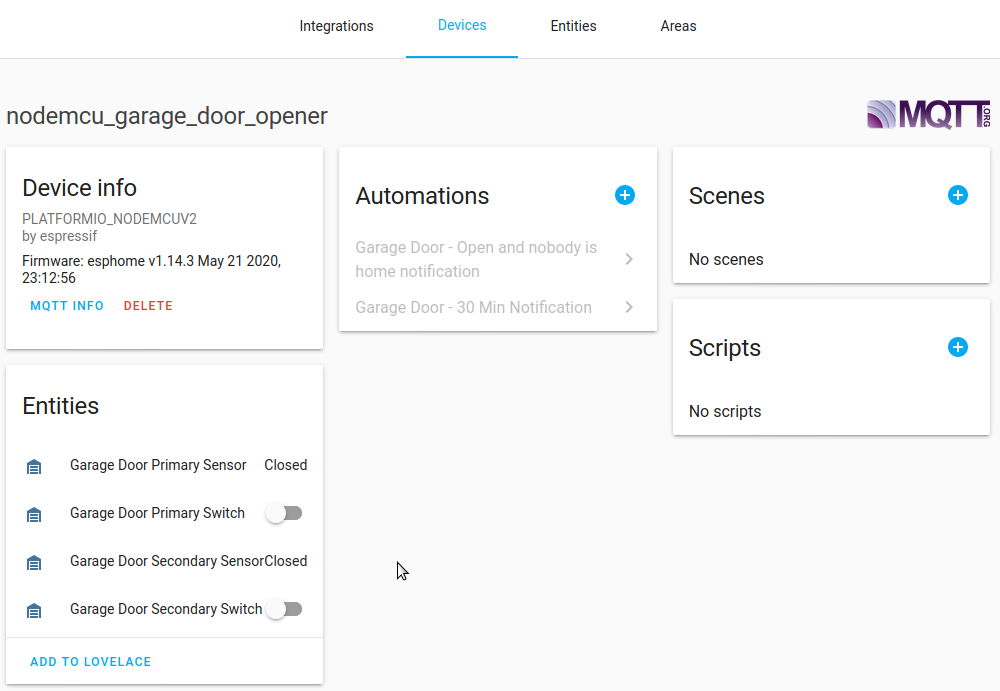
<p>MQTT is the default way for to communicate. ESPHome reports the the status of the relays and reed witches. ESPHome also handles working with Home Assistant’s MQTT Auto-Discovery feature, so everything show up with no configuration necessary.</p>

<p><strong><a href="https://gist.github.com/maxfarrior/ae4e98ceb8910b6ae98e1413a6441ba7">Full ESPHome configuration available here</a>.</strong></p>

<div class="gallery">

<dl class="gallery-item">
<dt class="gallery-icon">
<a class="gallery-link" href="/images/diy_garage_door_opener-301.png" title="View in MQTT broker" rel="software"><img src="/images/diy_garage_door_opener-301-thumb.png" class="thumbnail" width="150" height="150" /></a></dt>
<dd class="gallery-caption">View in MQTT broker</dd></dl>

<dl class="gallery-item">
<dt class="gallery-icon">
<a class="gallery-link" href="/images/diy_garage_door_opener-302.png" title="The device detected in Home Assistant" rel="software"><img src="/images/diy_garage_door_opener-302-thumb.png" class="thumbnail" width="150" height="150" /></a></dt>
<dd class="gallery-caption">The device detected in Home Assistant</dd></dl>

<br style="clear: both;" />

</div>

<h1 id="garage-installation">Garage Installation</h1>

<div class="gallery">

<dl class="gallery-item">
<dt class="gallery-icon">
<a class="gallery-link" href="/images/diy_garage_door_opener-201.jpg" title="Mounted on the motor unit" rel="installation"><img src="/images/diy_garage_door_opener-201-thumb.jpg" class="thumbnail" width="150" height="150" /></a></dt>
<dd class="gallery-caption">Mounted on the motor unit</dd></dl>

<dl class="gallery-item">
<dt class="gallery-icon">
<a class="gallery-link" href="/images/diy_garage_door_opener-202.jpg" title="Closer view of the connections" rel="installation"><img src="/images/diy_garage_door_opener-202-thumb.jpg" class="thumbnail" width="150" height="150" /></a></dt>
<dd class="gallery-caption">Closer view of the connections</dd></dl>

<dl class="gallery-item">
<dt class="gallery-icon">
<a class="gallery-link" href="/images/diy_garage_door_opener-203.jpg" title="The other side (bad quality)" rel="installation"><img src="/images/diy_garage_door_opener-203-thumb.jpg" class="thumbnail" width="150" height="150" /></a></dt>
<dd class="gallery-caption">The other side (bad quality)</dd></dl>

<dl class="gallery-item">
<dt class="gallery-icon">
<a class="gallery-link" href="/images/diy_garage_door_opener-204.jpg" title="Wire to the door sensor" rel="installation"><img src="/images/diy_garage_door_opener-204-thumb.jpg" class="thumbnail" width="150" height="150" /></a></dt>
<dd class="gallery-caption">Wire to the door sensor</dd></dl>

<br style="clear: both;" /><dl class="gallery-item">
<dt class="gallery-icon">
<a class="gallery-link" href="/images/diy_garage_door_opener-205.jpg" title="Wires to the second opener unit (not pictured)" rel="installation"><img src="/images/diy_garage_door_opener-205-thumb.jpg" class="thumbnail" width="150" height="150" /></a></dt>
<dd class="gallery-caption">Wires to the second opener unit (not pictured)</dd></dl>

<dl class="gallery-item">
<dt class="gallery-icon">
<a class="gallery-link" href="/images/diy_garage_door_opener-206.jpg" title="The door sensor overview" rel="installation"><img src="/images/diy_garage_door_opener-206-thumb.jpg" class="thumbnail" width="150" height="150" /></a></dt>
<dd class="gallery-caption">The door sensor overview</dd></dl>

<dl class="gallery-item">
<dt class="gallery-icon">
<a class="gallery-link" href="/images/diy_garage_door_opener-207.jpg" title="Close-up of the door sensor" rel="installation"><img src="/images/diy_garage_door_opener-207-thumb.jpg" class="thumbnail" width="150" height="150" /></a></dt>
<dd class="gallery-caption">Close-up of the door sensor</dd></dl>

<dl class="gallery-item">
<dt class="gallery-icon">
<a class="gallery-link" href="/images/diy_garage_door_opener-208.jpg" title="The connections on the opener unit" rel="installation"><img src="/images/diy_garage_door_opener-208-thumb.jpg" class="thumbnail" width="150" height="150" /></a></dt>
<dd class="gallery-caption">The connections on the opener unit</dd></dl>

<br style="clear: both;" /><dl class="gallery-item">
<dt class="gallery-icon">
<a class="gallery-link" href="/images/diy_garage_door_opener-209.jpg" title="The existing garage wall buttons" rel="installation"><img src="/images/diy_garage_door_opener-209-thumb.jpg" class="thumbnail" width="150" height="150" /></a></dt>
<dd class="gallery-caption">The existing garage wall buttons</dd></dl>

<br style="clear: both;" />

</div>

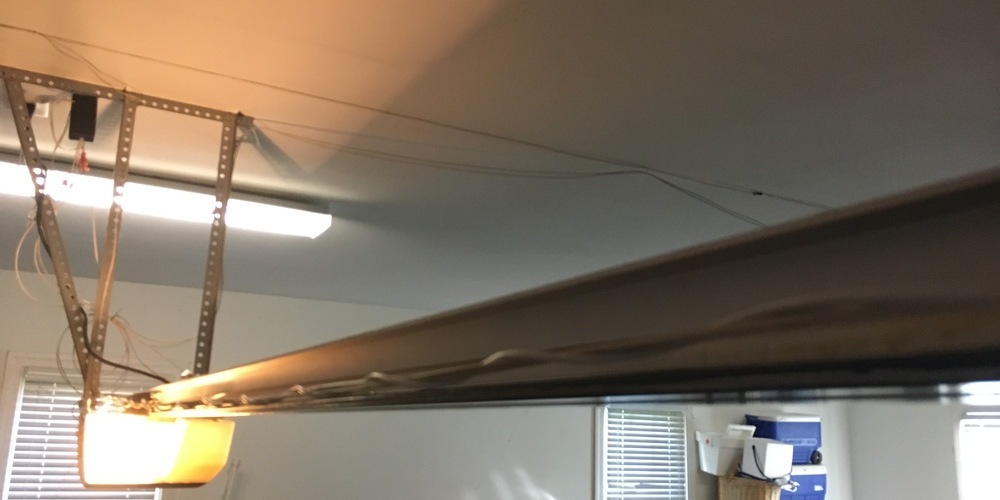
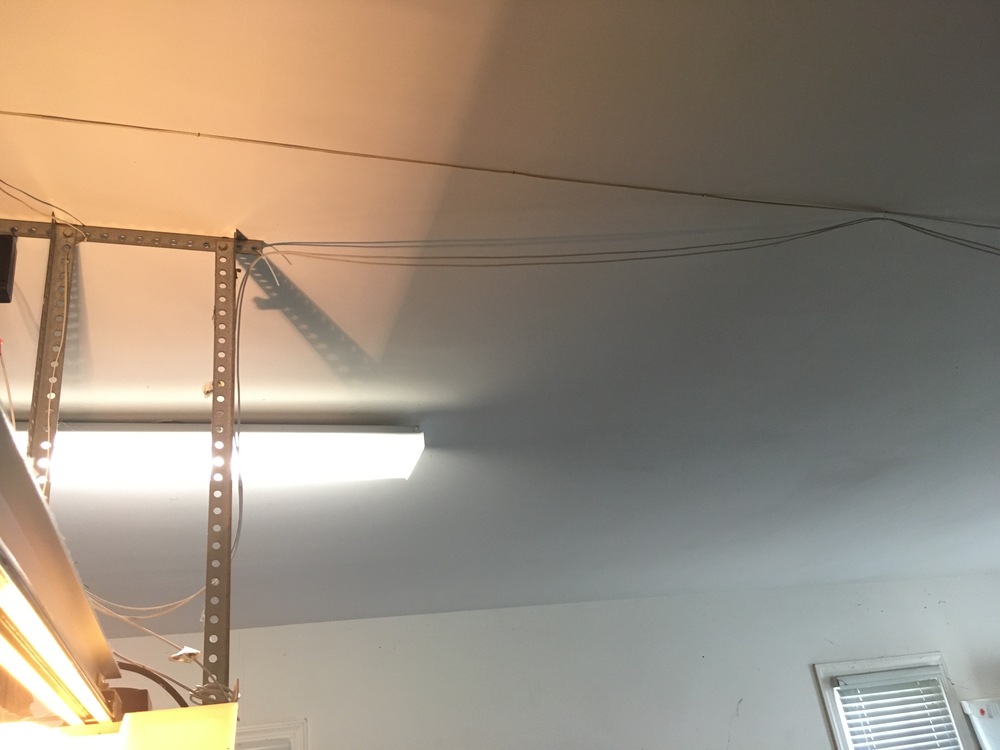
<p>I bought some generic “security wire” to connect the relays and reed switches. The “security wire” is a plain cable with two 22 AWG wires in it. I run one cable to each garage door motor unit and one wire to each reed sensor.</p>

<p>No snags on this step. Just measuring/cutting the wires and mounting the sensors, and connecting to the garage door motor unit.</p>

<p>I was fortunate that there was a spare outlet available, I didn’t have to worry about finding a 5 VDC source.</p>

<h1 id="home-assistant">Home Assistant</h1>

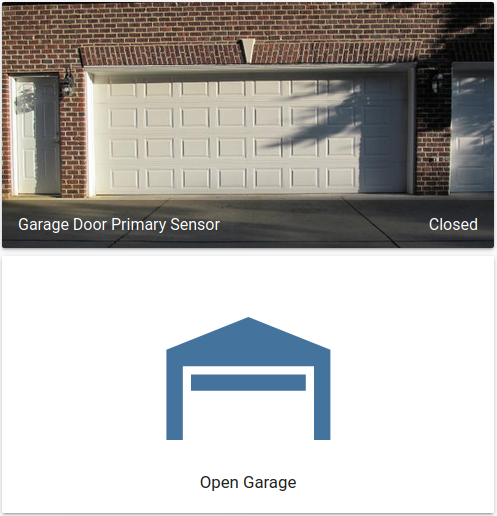
<p>Using the Lovelace <code class="language-plaintext highlighter-rouge">picture-entity</code> and <code class="language-plaintext highlighter-rouge">custom:button-card</code> cards, I created a nice looking control interface.</p>

<div class="language-plaintext highlighter-rouge"><div class="highlight"><pre class="highlight"><code>- type: vertical-stack
  cards:
    - type: picture-entity
      title: Garage Door Primary
      entity: binary_sensor.garage_door_primary_sensor
      state_image:
        "on": /local/garage_door_primary_open.jpg
        "off": /local/garage_door_primary_closed.jpg
    - type: custom:button-card
      entity: switch.garage_door_primary_switch
      show_state: false
      name: '[[[ if (states["binary_sensor.garage_door_primary_sensor"].state == "on" ) return "Close Garage"; else return "Open Garage" ]]]'
      icon: '[[[ if (states["binary_sensor.garage_door_primary_sensor"].state == "on" ) return "mdi:garage-variant"; else return "mdi:garage-open-variant" ]]]'
      state:
        - value: 'on'
          icon: mdi:garage-alert
          color: rgb(255, 0, 0)
</code></pre></div></div>

<div class="gallery">

<dl class="gallery-item">
<dt class="gallery-icon">
<a class="gallery-link" href="/images/diy_garage_door_opener-401.png" title="Garage door closed" rel="homeassistant"><img src="/images/diy_garage_door_opener-401-thumb.png" class="thumbnail" width="150" height="150" /></a></dt>
<dd class="gallery-caption">Garage door closed</dd></dl>

<dl class="gallery-item">
<dt class="gallery-icon">
<a class="gallery-link" href="/images/diy_garage_door_opener-402.png" title="Garage door open" rel="homeassistant"><img src="/images/diy_garage_door_opener-402-thumb.png" class="thumbnail" width="150" height="150" /></a></dt>
<dd class="gallery-caption">Garage door open</dd></dl>

<br style="clear: both;" />

</div>

<h1 id="video">Video</h1>

<p>Coming soon…</p>

<h1 id="automation-ideas">Automation Ideas</h1>

<ul>
  <li>If garage door is open for 10 minutes and nobody is home,
    <ul>
      <li>Close the garage</li>
      <li>Send push notifications</li>
    </ul>
  </li>
  <li>If garage door is open for more than 30 minutes and somebody is home,
    <ul>
      <li>Send push notifications to everybody (or only people that are home)</li>
      <li>(Alternate) Say a TTS message over the house intercom</li>
    </ul>
  </li>
</ul>]]></content><author><name>Max Farrior</name><email>mfarrior@gmail.com</email></author><category term="Home Automation" /><summary type="html"><![CDATA[I wanted to incorporate my garage doors into my Home Automation system. With a simple wall button that causes the garage door to open and close, surely I could build something that does this and is controllable by Home Assistant.]]></summary></entry><entry><title type="html">ZFS NAS Attempt #2</title><link href="/2019/zfs-nas-1/" rel="alternate" type="text/html" title="ZFS NAS Attempt #2" /><published>2019-11-30T00:00:00+00:00</published><updated>2019-11-30T00:00:00+00:00</updated><id>/2019/zfs-nas-1</id><content type="html" xml:base="/2019/zfs-nas-1/"><![CDATA[<h3 id="ditching-freenas">Ditching FreeNAS</h3>

<p>I decided to abandon using FreeNAS.</p>

<p>The main reason is that I want to use <a href="https://github.com/jimsalterjrs/sanoid/">Sanoid</a> to create and manage ZFS snapshots. So it seems the most reasonable way to do this is to run Sanoid in a jail. The dealbreaker came when I tried to pass all the datasets to the jail. It <em>did not work</em>. I could not access all my datasets from the jail. And, I did this a while ago, so I don’t remember the exact problems, but I spent a tremendous amount of effort on getting this working, and I was not able to. I also found no information on the Internet on what the problem could have been. I mean I found nothing. My biggest hunch I found was that the issue was caused by an 88-character limitation on the path to the dataset. If that is the problem, I think that’s a dumb limitation. Why have a limitation at all, and if there has to be one, why not make it something huge, like a million characters or something? Whatever the reason, I think it’s dumb.</p>

<p>A minor girpe I have with FreeNAS is the direction the projet is going. FreeNAS includes a feature to be able to run VMs. From what I have read, this is complex and causes a lot of issues, because creating a hypervisor is not simple. It seems like FreeNAS is trying to create an “all-in-one” product like Unraid, where you have one server that manages the storage, and can run various applications in jails and in VMs. IMO, that’s not what I want in a storage applicance. I just want storage. If I wanted a hyperivsor, I’d get an actual hypervisor. I like the ability of having jails (a default FreeBSD feature) to be able to run a few programs/scripts, but I don’t think major programs and infrastructure should be running on my storage. And the bigger issue is that FreeNAS devs are spending time developing a hypervisor, which has been the source of a lot of issues. I wish they would just focus on ZFS storage. Again, minor gripe.</p>

<p>Last, I want to say that I don’t dislike FreeNAS at all, I still think it’s great. It just doesn’t do what I want.</p>

<h3 id="my-revised-storage-needs">My Revised Storage Needs</h3>

<p>With the creating of my Proxmox server, this box is now purely backup storage. I have no need for any type of performance. I just need ZFS storage, and a way to access that storage on my network. I also don’t have any particular capacity goal. As long as it can hold around 4 TB, it can work.</p>

<h3 id="hardware-changes">Hardware Changes</h3>

<p>First, I took out the OCZ Vertex (1) and replaced it with some 128 GB OEM Samsung (PM851?) SSD. I made the swap because the Vertex is super old, and I the Samsung SSD was just sitting around.</p>

<p>Next, I took out the Xeon 1221 v1 CPU and replaced it with the stock Pentium G1610T. Again, no need for performnace, the stock CPU will draw less power.</p>

<p>I will also re-use the 3 TB Dell-branded Seagate Constallation ES.2 hard drive. I have five total, I will use four in the box, and the fifth will be a cold spare.</p>

<h3 id="software">Software</h3>

<p>My only requirements were to be able to run ZFs, be accessible over the network, and run Sanoid. I setteled on Debian, because it can easily do all that.</p>

<p>I installed Debian on the SSD, installed ZFS, and installed and configured Sanoid.</p>

<p>I am much happier with this sofware setup. No need for the complex system that is FreeNAS, this is so much simpler, and does what I want.</p>

<h3 id="native-zfs-encryption">Native ZFS Encryption</h3>

<p>Since ZFS 0.8, ZFS now has native encryption capabilites. So no need to depend on FreeNAS’s (FreeBSD’s?) GELI encryption, and no need to stack ZFS partition on top of LUKS devices. Now, you can create your ZFS pool, and then create datasets that are encrypted.</p>]]></content><author><name>Max Farrior</name><email>mfarrior@gmail.com</email></author><category term="ZFS NAS" /><summary type="html"><![CDATA[Ditching FreeNAS]]></summary></entry><entry><title type="html">Zigbee2MQTT Part 3 - Antenna Modification &amp;amp; Zigbee Router</title><link href="/2019/zigbee2mqtt-3/" rel="alternate" type="text/html" title="Zigbee2MQTT Part 3 - Antenna Modification &amp;amp; Zigbee Router" /><published>2019-11-23T00:00:00+00:00</published><updated>2019-11-23T00:00:00+00:00</updated><id>/2019/zigbee2mqtt-3</id><content type="html" xml:base="/2019/zigbee2mqtt-3/"><![CDATA[<p>I was having some issues with some Zigbee devices not reporting and going “offline” for long periods of time. I also noticed that these devices were physically far away from my CC2531 stick.</p>

<h3 id="cc2531-antenna-modification">CC2531 Antenna Modification</h3>

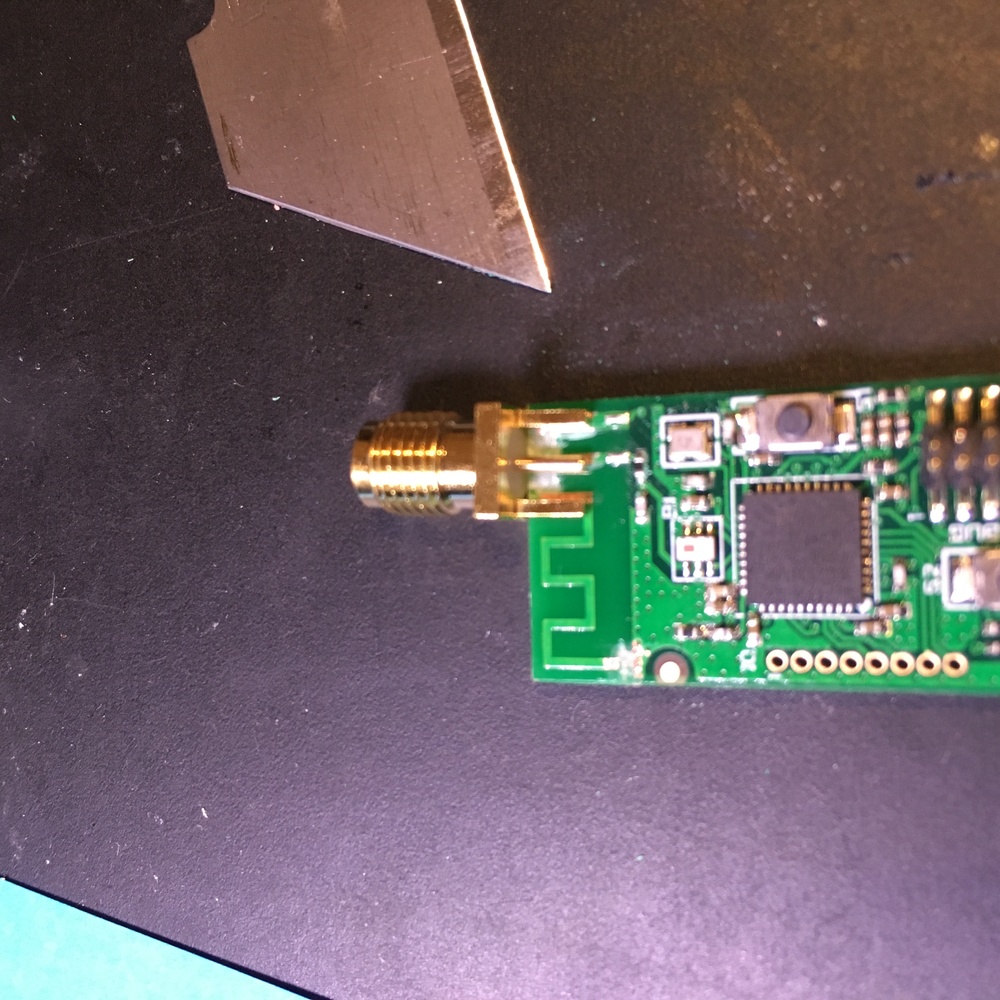
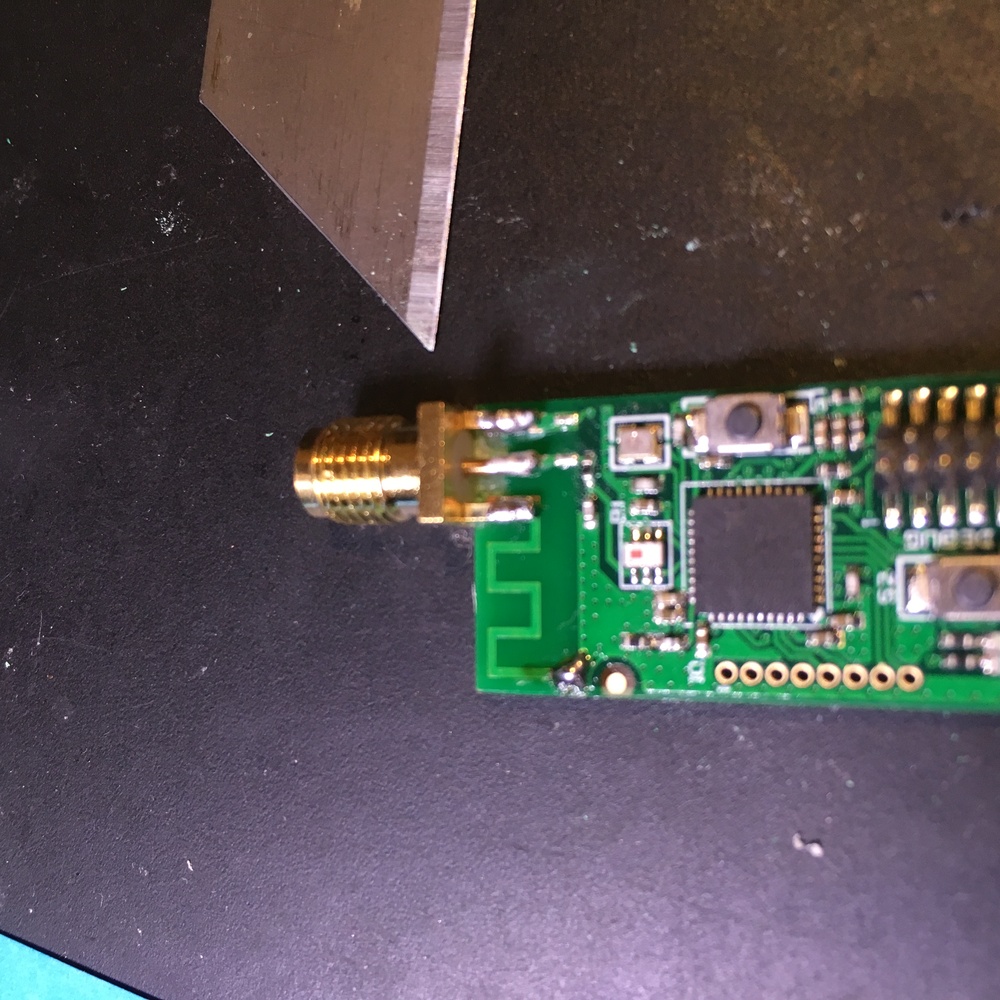
<p>I followed the steps on <a href="https://hackaday.io/project/163505-cc2531-usb-adapter-antenna-mod">this Hackaday page</a>.</p>

<div class="gallery">

<dl class="gallery-item">
<dt class="gallery-icon">
<a class="gallery-link" href="/images/zigbee2mqtt-301.jpg" title="CC2531 antenna traces exposed using a razor." rel="one"><img src="/images/zigbee2mqtt-301-thumb.jpg" class="thumbnail" width="150" height="150" /></a></dt>
<dd class="gallery-caption">CC2531 antenna traces exposed using a razor.</dd></dl>

<dl class="gallery-item">
<dt class="gallery-icon">
<a class="gallery-link" href="/images/zigbee2mqtt-302.jpg" title="Female SMA connector in place." rel="one"><img src="/images/zigbee2mqtt-302-thumb.jpg" class="thumbnail" width="150" height="150" /></a></dt>
<dd class="gallery-caption">Female SMA connector in place.</dd></dl>

<dl class="gallery-item">
<dt class="gallery-icon">
<a class="gallery-link" href="/images/zigbee2mqtt-303.jpg" title="SMA connector soldered in place. Ground trace also connected." rel="one"><img src="/images/zigbee2mqtt-303-thumb.jpg" class="thumbnail" width="150" height="150" /></a></dt>
<dd class="gallery-caption">SMA connector soldered in place. Ground trace also connected.</dd></dl>

<br style="clear: both;" />

</div>

<p>In short, we cut the original antenna and solder in a antenna connector. With that in place, a larger, external antenna can be used instead of relying on the small built-in antenna.</p>

<h3 id="zigbee-network-changes">Zigbee Network Changes</h3>

<p>To also help with the range, I followed some steps on <a href="https://www.zigbee2mqtt.io/how_tos/how_to_improve_network_range.html">this page</a>.</p>

<p>First, using a USB extension cable to move the CC2531 away from the computer. Then I changed the channel of the Zigbee network to 24. (All my Wifi networks used either channel 1 or channel 6.) Changing the channel required repairing ALL DEVICES, which was a PITA.</p>

<h3 id="cc2530-router">CC2530 Router</h3>

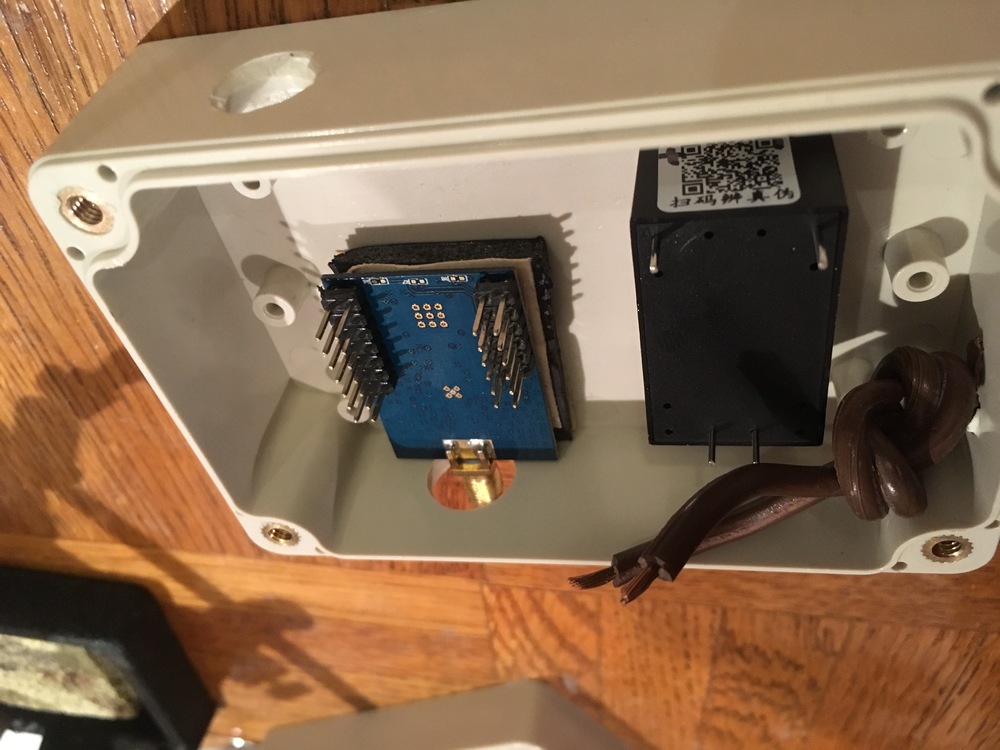
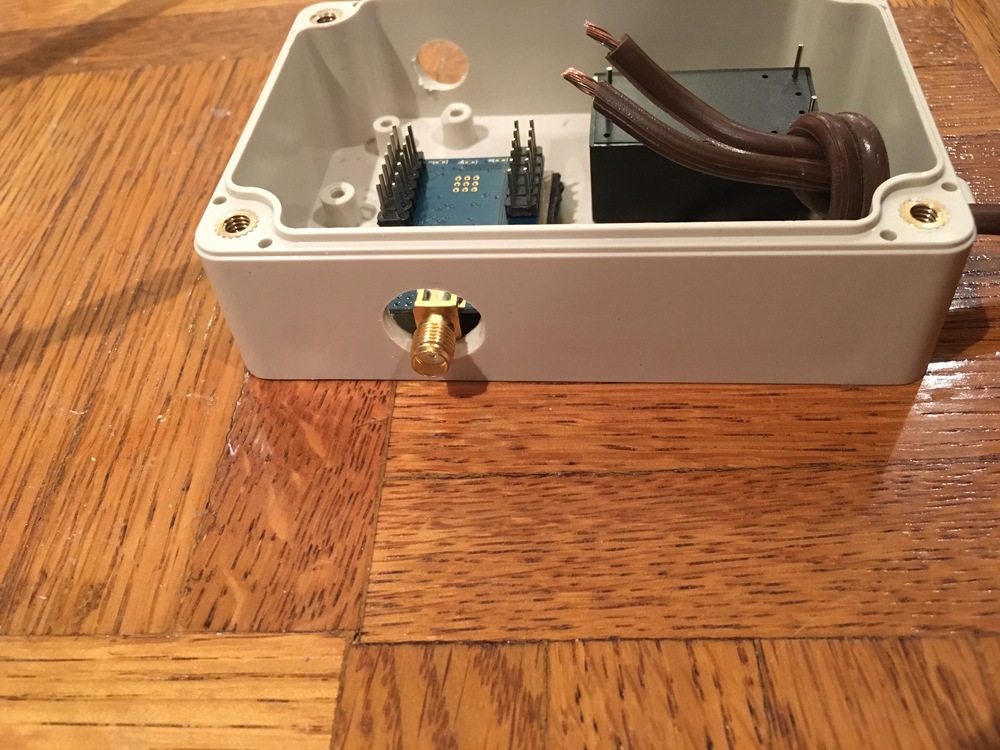
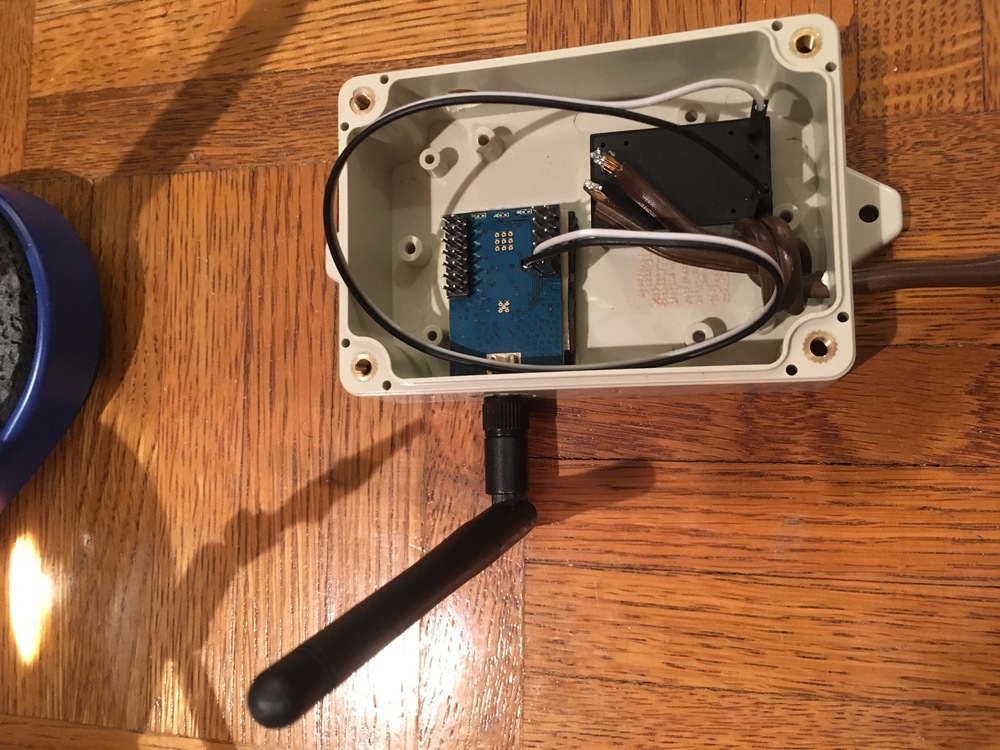
<p>I found out it’s possible to <a href="https://www.zigbee2mqtt.io/how_tos/how_to_create_a_cc2530_router.html">create a Zigbee router</a>, using another radio similar to the CC2531. This radio can operate without a computer, and just relays signals for oter devices. The <a href="https://www.zigbee2mqtt.io/information/zigbee_network.html">page on the different types of Zigbee devices</a> is worth reading.</p>

<p>It also bring the benefit of extending the 20 device limit of the CC2531, which I am at or very near. I hope this would really help with extending the range of the far-away devices, by acting as a middle point between the device and the CC2531.</p>

<p>I decided to use the CC2530+CC2591 because it is more powerful, and only costs ~8 USD more.</p>

<div class="gallery">

<dl class="gallery-item">
<dt class="gallery-icon">
<a class="gallery-link" href="/images/zigbee2mqtt-304.jpg" title="Parts mounted in enclosure." rel="two"><img src="/images/zigbee2mqtt-304-thumb.jpg" class="thumbnail" width="150" height="150" /></a></dt>
<dd class="gallery-caption">Parts mounted in enclosure.</dd></dl>

<dl class="gallery-item">
<dt class="gallery-icon">
<a class="gallery-link" href="/images/zigbee2mqtt-305.jpg" title="Overhead view." rel="two"><img src="/images/zigbee2mqtt-305-thumb.jpg" class="thumbnail" width="150" height="150" /></a></dt>
<dd class="gallery-caption">Overhead view.</dd></dl>

<dl class="gallery-item">
<dt class="gallery-icon">
<a class="gallery-link" href="/images/zigbee2mqtt-306.jpg" title="Outside view." rel="two"><img src="/images/zigbee2mqtt-306-thumb.jpg" class="thumbnail" width="150" height="150" /></a></dt>
<dd class="gallery-caption">Outside view.</dd></dl>

<dl class="gallery-item">
<dt class="gallery-icon">
<a class="gallery-link" href="/images/zigbee2mqtt-307.jpg" title="Parts connected." rel="two"><img src="/images/zigbee2mqtt-307-thumb.jpg" class="thumbnail" width="150" height="150" /></a></dt>
<dd class="gallery-caption">Parts connected.</dd></dl>

<br style="clear: both;" />

</div>

<p>A future improvement is to use <a href="https://www.aliexpress.com/item/32852976268.html">a larger antenna</a>. I left room to accomade this. I also used a liberal amount of hot glue over the exposed wires of the (120 VAC) extension cord. I definitely want them to be secured and isolated.</p>

<h3 id="results">Results</h3>

<p>Honestly, the results were underwhelming. First, I didn’t take proper “before” measurements, so I don’t have hard numbers to use for comparison. But from observation, I noticed that I don’t have any more dropouts anymore. So I think there was definitely an improvement.</p>]]></content><author><name>Max Farrior</name><email>mfarrior@gmail.com</email></author><category term="[&quot;Zigbee2MQTT&quot;, &quot;Home Automation&quot;]" /><summary type="html"><![CDATA[I was having some issues with some Zigbee devices not reporting and going “offline” for long periods of time. I also noticed that these devices were physically far away from my CC2531 stick.]]></summary></entry></feed>